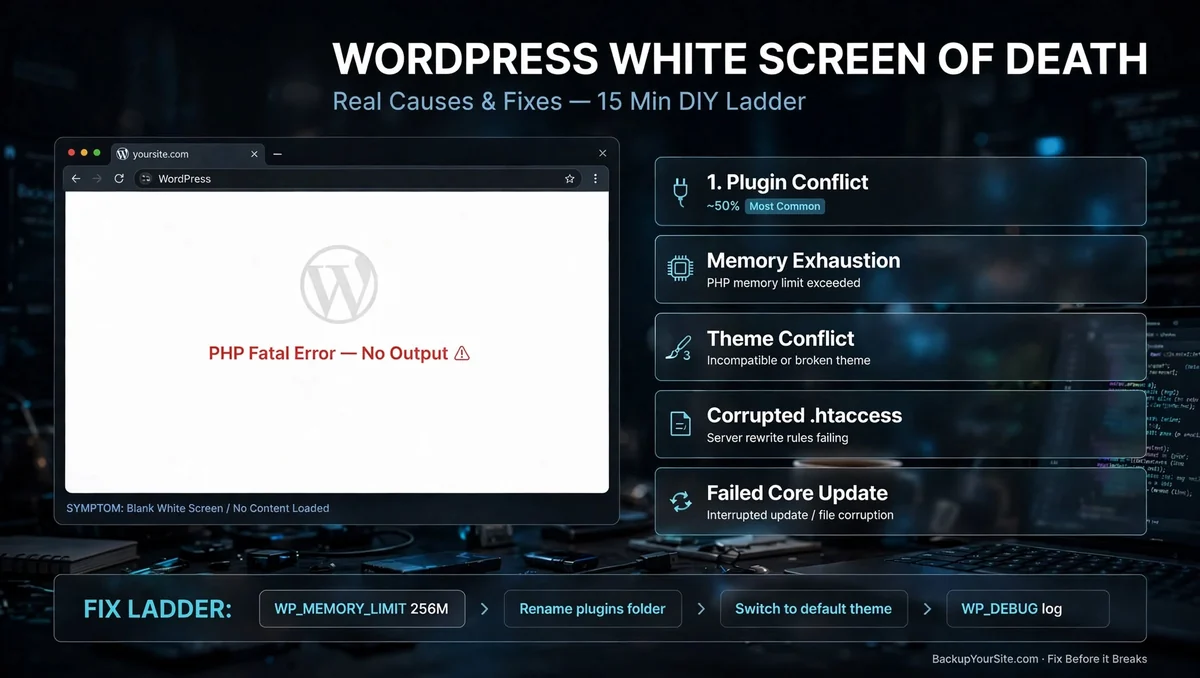
A blank white page where your WordPress site used to be is not a styling bug. It is PHP refusing to finish rendering the page. The single question that decides what you do next is this: can you still get into the site through SFTP, SSH, or the file manager in your hosting panel? Every generic troubleshooting guide skips that fork. Most jump straight to a list of five fixes. We lead with the fork instead, because it is the difference between a 10 minute DIY repair and a restore-from-backup situation that no amount of editing will solve.
If you still have file access, you can fix most white screens yourself in under 15 minutes using the ladder below. If you don't — the host suspended the account, the FTP credentials are gone, or the control panel itself is unreachable — none of those fixes are reachable. Restoring from your last known-good backup becomes the only path back online. BackupYourSite's own FAQ answer on restoring a completely down site is a one-line teaser for exactly this scenario. This article is the deep dive behind it.
What a White Screen of Death Actually Means
A WSOD happens when a PHP fatal error occurs before WordPress has sent any output to the browser. The server returns HTTP 200 with an empty body. There's no error code to search and no stack trace on screen, just blank white. Under the hood, the PHP process already crashed; it just didn't tell you why. According to WordPress's own debugging documentation, the fix is always to surface that hidden error, not to guess at it.
The WSOD generally shows up in one of two shapes. The first is a full-site blank, where every page is empty, including wp-admin. The second is a partial blank, where the front end dies but wp-admin still loads, or the reverse. A partial blank usually narrows the cause to a specific theme template or a single plugin's front-end hook, which is worth noting before you start disabling things at random.
When the site owner has file access, a fix is usually a matter of minutes. Arranging a full restore through a host's support desk, by contrast, routinely stretches into hours. That gap alone is why the access question comes before any fix.
The Fork Nobody Asks First: Can You Still Get In?
Try wp-admin first. If the dashboard loads even though the front end is blank, you're in the easiest category — you can deactivate plugins from the Plugins screen with zero file access needed. If wp-admin is also blank, you need SFTP or SSH. If you have those credentials and they still work, every fix in the ladder below is available to you. If the hosting account itself is suspended, the credentials were lost in a handoff, or the host's infrastructure is down, you are locked out of all four DIY fixes — and a backup restore is the only remaining option.
This is the fork the five-step generic listicles never draw, and it's the one that actually determines how your afternoon goes.
The 5 Real Causes, and the Order They Usually Show Up In
Five root causes account for nearly every white screen you'll run into, roughly in this order of how often they show up.
- Plugin conflict — one of the most common triggers. It usually hits right after a plugin update changes a hook signature or a function name the theme still calls the old way.
- Memory exhaustion — the single most common root cause when you isolate for actual PHP fatal errors rather than conflicts. A plugin or import job asks for more memory than
WP_MEMORY_LIMITallows, and PHP kills the process mid-render. - Theme conflict — a parent/child theme mismatch, or a template file referencing a function that no longer exists after a plugin was deactivated.
- Corrupted.htaccess — one stray character, often from a manual edit or a careless find-and-replace. It breaks Apache's rewrite rules before PHP even runs.
- Failed or interrupted core auto-update — the update process dies partway through. Core files end up in an inconsistent state, with some on the old version and some on the new one.
Most of these cases trace back to an update event — plugin, theme, or core — rather than a sudden hardware failure. That is why timing matters. If the site broke within minutes of an update, start there.
A common pattern: a site that's been fine for years suddenly breaks the same week a major plugin ships a version bump. The plugin changelog is often the fastest diagnostic tool you have, faster than any of the four fixes below.
The DIY Fix Ladder — Try These in Order
This is the sequence to follow once file access is confirmed. Each step rules out one cause before moving to the next.
- Raise
WP_MEMORY_LIMITinwp-config.php. Adddefine('WP_MEMORY_LIMIT', '256M');above the line that says "That's all, stop editing." This alone resolves memory-exhaustion white screens in under 2 minutes once the page reloads. - Rename the plugins folder via SFTP. Connect to
/wp-content/pluginsand rename it toplugins-disabled. WordPress will treat every plugin as deactivated without you touching the database. If the site comes back, rename the folder back and reactivate plugins one at a time, over roughly 10 minutes, to isolate the culprit. - Switch to a default theme. If the plugin test didn't fix it, rename your active theme's folder in
/wp-content/themes. WordPress then falls back to a default theme like Twenty Twenty-Four. A fix here points to a theme template orfunctions.phpproblem. - Turn on
WP_DEBUGwith display OFF. Adddefine('WP_DEBUG', true);,define('WP_DEBUG_DISPLAY', false);, anddefine('WP_DEBUG_LOG', true);. Reload the page, then read the actual PHP fatal error from/wp-content/debug.log. Never display it on a live site, since that leaks file paths to any visitor.
Steps 1 and 2 alone resolve most white-screen cases within the first 15 minutes.
When None of That Works: The Access-Locked Scenario
Every fix above assumes your SFTP or SSH access still works. Sometimes it doesn't. The account could be suspended for non-payment, the host itself could be down, the credentials might never have been handed over during a team transition, or a security incident could have locked the account pending review. In any of those cases, none of the four steps above are reachable. There is no file manager to log into and nothing to rename.
That is the exact scenario BackupYourSite's automated restore tooling is built for. A one-click rollback to the last known-good snapshot doesn't require live SFTP credentials to the broken install, because it restores through an independent connection set up in advance, before anything ever breaks.
This plays out most often in two situations: an agency offboarding a client without a credentials handoff, or a host-side billing suspension that catches an owner by surprise, sometimes after a card on file expires. In both cases, the site owner has no DIY path left within the first hour — only a restore.
Restoring a snapshot is usually a matter of minutes once a recent backup actually exists — the real variable is backup recency, which is the next problem worth addressing directly.
A White Screen Is Not Proof Your Backups Are Fine
Here's the trap. A site owner sees a WSOD, restores from the latest backup, and assumes the crisis is over. If the last known-good snapshot predates whatever actually corrupted the core files, restoring just reproduces the same crash a few page loads later. This happens when a bad update sits unnoticed for weeks before the white screen finally surfaces — the nightly backup from the night before dutifully preserves the broken state along with everything else. A restore that "didn't fix it" often traces back to exactly this: a backup that was already stale by the time the WSOD surfaced.
That's why restore testing matters as much as backup frequency. We recommend reading how often you should actually back up a WordPress site alongside the restore drill most owners never run until it's 2 a.m. A backup schedule only protects you if the restore itself has been tested before the night you actually need it. The Cybersecurity and Infrastructure Security Agency lists tested, verified backups as a baseline defense for exactly this reason. An untested backup is a guess, not a safety net.
A simple way to verify backup health: once a month, restore the latest snapshot to a disposable staging copy and load the homepage, the admin dashboard, and one random inner page. If all three load clean, mark that backup verified. If any one fails, flag it as unverified and dig into why before the next scheduled run.
What To Do, Step by Step, Starting Right Now
Here's the order to follow, start to finish: confirm wp-admin access first (30 seconds), raise the memory limit (2 minutes), rename the plugins folder (3 minutes), switch the theme if needed (2 minutes), and turn on debug logging if the first three didn't resolve it (5 minutes). If none of that is reachable because file access itself is gone, go straight to a restore rather than burning an hour on steps that were never going to work without a login.
Most white screens never need a full restore — they're fixed within that same 15-minute window using nothing more than the ladder above.
Frequently Asked Questions
Is a white screen the same as a 500 error?
No. A 500 error returns an explicit server error status; a WSOD returns HTTP 200 with an empty body because the PHP fatal error happened after headers were sent but before content was. The underlying causes overlap, but the symptom and the fix path differ slightly — a 500 often points faster to a server-config issue, while a WSOD usually traces to plugin, theme, or memory problems as outlined above.
Can a white screen happen without any recent changes?
Rarely, but yes — a scheduled auto-update (core, plugin, or theme) can trigger it even if no human touched the site that day. Check your host's update logs or your plugin's changelog for anything that ran in the hours before the WSOD appeared.
Will raising the memory limit fix every white screen?
No. It fixes memory-exhaustion cases, which is one root cause among several. If the page is still blank after raising WP_MEMORY_LIMIT, move to the next step in the ladder — a plugin or theme conflict needs a different fix entirely.
Can I restore if my site is completely down and I can't log into anything?
Yes — this is exactly the access-locked scenario covered above. A proper backup and restore tool keeps its own connection to your hosting account independent of your WordPress login, so a site-side lockout doesn't block the restore. See our full FAQ answer for the exact steps.
How do I know if my last backup is actually good, not just recent?
Run a test restore to a staging environment on a schedule, not just when something breaks. A backup that was never restored is unverified by definition — recency alone doesn't tell you the files aren't already corrupted.