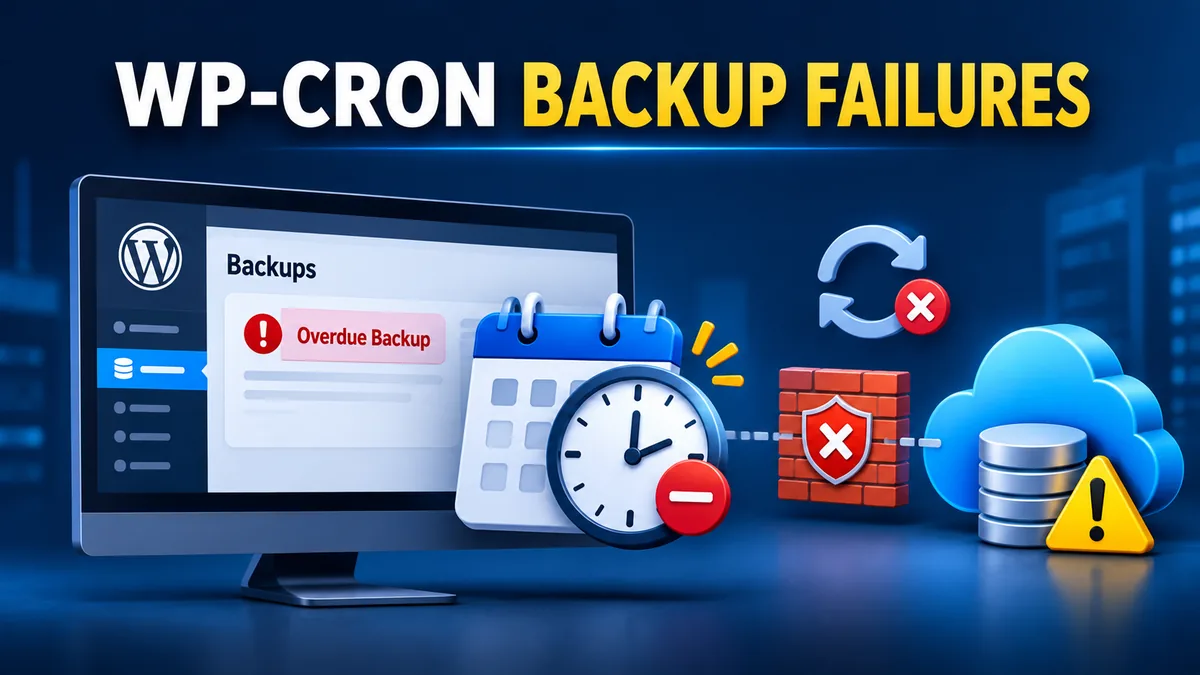
The dashboard lies by omission
Open wp-admin on a site with a failing backup schedule and nothing screams at you. There's no red banner, no error toast, no failed-job notification in the admin bar. What you see instead is a "last run" timestamp. It used to say "2 hours ago." Now it says "9 days ago," then "14 days ago." Nobody noticed until a plugin update went wrong and the most recent restore point was three weeks old. It's one of the most common support ticket patterns across managed WordPress hosting: a backup plugin that was working fine, that silently stopped, with no visible failure state anywhere in the UI.
That's the real story behind "why does my backup keep failing." It's almost never the backup plugin's own code. UpdraftPlus, BackWPup, Duplicator Pro, All-in-One WP Migration — every one of them schedules its runs through the same mechanism, WP-Cron. And WP-Cron has at least seven well-documented ways to quietly stop firing, without ever throwing a visible error. We've written before about one specific symptom of this. See our piece on UpdraftPlus's silent backup failure. That's one plugin's version of a much bigger mechanism. This article is the mechanism itself.
WP-Cron isn't a real cron job, and that's the root of everything
Here's the part most WordPress users never get told: WP-Cron is not a system cron job. It doesn't live in crontab. It doesn't run on a fixed clock independent of traffic. The server doesn't "know" about your 2am backup schedule the way it knows a Linux cron entry. WP-Cron is a pseudo-cron that WordPress checks on every single page load. When a visitor hits your site, WordPress glances at a stored list of scheduled events. If anything is overdue, it fires off a loopback HTTP request to wp-cron.php to run it.
That single design decision is the parent of every failure mode below. Per the WordPress developer documentation at developer.wordpress.org, wp-cron.php triggers on page load so that sites with no dedicated cron access could still schedule tasks. That was a reasonable compromise in 2003. It's a liability now, with so much infrastructure sitting between a visitor's click and WordPress actually executing PHP.
The seven real causes, and why they're so hard to spot
These seven causes account for nearly every "backup stopped running" problem you'll run into. None of them are exotic. All of them are invisible from inside wp-admin.
1. DISABLE_WP_CRON is set, and the replacement runner is gone
Most managed WordPress hosts (WP Engine, Kinsta, Pressable, and others) add define('DISABLE_WP_CRON', true); to wp-config.php on purpose. They then run a real system cron job that hits wp-cron.php on a fixed schedule, usually every 1 to 5 minutes. That's the correct fix for the page-load problem above. The failure happens during a migration. The site moves host. The wp-config.php constant comes along for the ride, because nobody strips it. But the host-level system cron job that was supposed to replace it does not migrate, because it was never part of the WordPress files in the first place. The result is a site that has permanently disabled its own native cron trigger and has no replacement. Backups, scheduled posts, and WooCommerce order emails all go quiet at the same time. That's usually the tell.
2. Low-traffic sites simply never get the trigger
If nothing visits the site between 1:55am and 6am, nothing checks whether the 2am backup event is overdue, so it doesn't run at 2am — it runs whenever the first visitor of the day shows up, if ever. For a staging site, an internal tool, or any property with light overnight traffic, a schedule built around "every night at 2am" is really "sometime after the next visit, maybe."
3. Loopback requests get blocked by the site's own firewall
WP-Cron fires by having the server send an HTTP request to itself. A security plugin (Wordfence, Sucuri, iThemes Security) or a server-level firewall rule can block that loopback request as if it were an external attacker. From the firewall's point of view, it looks exactly like one. Per the knowledge base at jorijn.com, this is one of the harder failures to diagnose, because the block is silent at the application layer. WordPress thinks it scheduled the event correctly. The firewall simply never lets the trigger request land.
4. Full-page caching serves the response before WordPress ever loads
WP Super Cache, W3 Total Cache, and Cloudflare's own page rules can all serve a cached HTML response directly, without ever booting the WordPress PHP process for that request. If every request to the site is a cache hit, WP-Cron's "check on page load" mechanism never gets a page load to check on. The backup schedule sits there, perpetually overdue, because the one thing that would have triggered it — an actual WordPress page load — stopped happening.
5. The 60-second cron lock creates a race condition under load
WordPress uses a transient, WP_CRON_LOCK_TIMEOUT, set to 60 seconds by default, to stop two overlapping requests from firing the same scheduled event twice. On a busy site, a backup job can take longer than that window just to start spawning, never mind finish. A second concurrent page load can then see the lock as stale and fight over the same event. Jorijn's write-up goes into real depth on the lock mechanism. It's worth reading if you run a high-traffic site and want to verify concurrent requests are actually the cause.
6. Plain resource limits kill the job mid-run
A backup job has to zip a database, walk the uploads directory, and push the result to remote storage. That's one of the most resource-intensive things WordPress ever does. A shared host with a 128MB memory cap, a 30-second max execution time, restrictive file permissions on wp-content, or a timeout on the remote storage API call can kill the job partway through. Because the job was triggered by a loopback request rather than a visible admin action, the failure often leaves no trace beyond a truncated or missing backup file.
7. A plugin conflict hooks into the cron engine itself
Caching plugins, security plugins, and performance plugins frequently hook into wp_loaded or filter the cron schedule directly to reduce overhead. Sometimes that's by design — disabling WP-Cron entirely, assuming you've set up a real cron job, which you may not have. Sometimes it's an accident: a bug in a plugin update that breaks the schedule_event filter for everyone running that version. This exact pattern shows up after a major caching plugin update often enough to be predictable: backups stop within days of the update, multiple site owners report near-identical symptoms, and the common thread traces back to the same plugin version.
Why none of this throws a visible error
This is the part that makes WP-Cron failures genuinely dangerous rather than merely annoying: every one of the seven causes above fails silently. There's no exception thrown inside wp-admin, no red banner, no email alert built into WordPress core for "a scheduled event did not run." The dashboard just shows yesterday's last-successful-run timestamp. Tomorrow it will show yesterday's timestamp again, slowly aging, with nothing else changing. The sites that get burned worst tend to be the ones where someone configured a backup plugin once, confirmed it worked, and never opened that settings screen again. Confirmation at setup time tells you nothing about whether the schedule is still firing six months later.
We touched on this exact gap in our FAQ answer to "How do I know a backup actually worked?" The short version: a backup plugin reporting "success" on its settings page, and a backup actually being retrievable, are two different claims. You need an integrity check — does the archive actually open, does the database dump have a clean completion marker — plus a daily summary email that explicitly lists sites that didn't run at all, not just sites that ran and failed. This article is the deeper technical answer underneath that FAQ line: the full list of reasons a run silently doesn't happen in the first place.
The fix that sidesteps the entire category
Every one of the seven causes above is a variation on the same root problem. The trigger for the backup depends on something inside WordPress itself: a visitor's page load, a loopback request the firewall might block, a cache layer that might intercept it, a lock timeout tuned for a different traffic pattern. BackupYourSite runs backups a different way. Our pull is triggered by our own scheduler, over SSH, on our clock — not WordPress's. That means causes 1 through 4 and cause 7 above simply don't apply, because none of them can touch a trigger that never goes through wp-cron.php in the first place. An SSH-triggered pull still has to deal with resource limits on the source server (cause 6). That's why our pull process streams rather than buffers the whole archive in memory, but it removes the page-load dependency entirely.
For anyone running backups on 3 or more WordPress sites, especially sites with uneven traffic patterns or aggressive caching layers, this distinction matters. It's the difference between "the backup plugin reports success" and "the backup is actually there when you need it." See how the monitoring and restore side of this works on our features page.
If you want to verify this on your own site before switching anything
Before you change backup tools, it's worth 10 minutes confirming whether WP-Cron is even the problem on your site. Install WP Crontrol, or run wp cron event list if you have WP-CLI access (documented at wp-cli.org). Look at whether scheduled events are overdue. A backup event showing "due 6 days ago" is as close to a smoking gun as you'll get. If DISABLE_WP_CRON is set in wp-config.php, confirm with your host that a real system cron job is actually hitting wp-cron.php on a schedule. This one check catches a large share of failed-migration backup issues on the first pass.
Frequently Asked Questions
Is this the same thing as the UpdraftPlus silent failure issue?
It's the mechanism underneath it. Our UpdraftPlus-specific article covers one plugin's particular failure signature. This article covers WP-Cron itself, which is the shared dependency for UpdraftPlus, BackWPup, Duplicator Pro, and almost every other backup plugin that schedules through WordPress rather than through the server.
How do I know if WP-Cron is actually the cause on my site?
Check whether your backup plugin's "last run" timestamp is stale by more than your scheduled interval — if it's set to run daily and the last run is 9 days old, that's a strong signal. Then check wp-config.php for DISABLE_WP_CRON, and if it's set, confirm with your host whether a replacement system cron job survived your last migration.
Will increasing WP_CRON_LOCK_TIMEOUT fix it?
Only if cause 5 (the lock race) is actually your problem, which on most sites it isn't — it mainly shows up on higher-traffic sites with long-running jobs. Raising the lock timeout on a low-traffic site with a firewall-blocked loopback request (cause 3) won't do anything, because the trigger request is never reaching wp-cron.php at all.
Does switching to an SSH-triggered backup fix every cause on this list?
It removes five of the seven — anything that depends on a WordPress page load reaching wp-cron.php. It does not remove resource-limit failures on the source server (cause 6), which is a separate problem that needs its own handling, which is why our pull process streams the archive rather than holding it in memory.
Can a backup plugin fix WP-Cron on its own, from inside WordPress?
Not reliably, if it relies on bare WP-Cron. A backup plugin that schedules its runs purely through WordPress's page-load-triggered scheduler is subject to the exact same dependency as everything else on this list. Some plugins try to work around this with their own internal "heartbeat" checks, but those checks are still triggered by a page load, so a site that never gets visited overnight still won't see the check fire. The durable fixes are either a real system cron job hitting wp-cron.php on a fixed interval, or a plugin built not to trust page-load-only WP-Cron in the first place — several independent ways of advancing a job (WP-Cron, a loopback request, and a browser-side check while the admin screen is open), plus an external ping for sites with little or no traffic. BackupYourSite's own free WordPress plugin is built this way for exactly this reason.
If you run backups across multiple WordPress sites and have ever found a gap you didn't expect, the fix usually isn't a different plugin. It's removing the page-load dependency entirely — either with a plugin engineered around it, or with a pull-based backup, like BackupYourSite's main SSH service, that never touches wp-cron.php at all. It's worth 10 minutes of checking your own wp-config.php and WP-Cron event list before your next migration, not after — a stale cron entry is a lot cheaper to catch on a Tuesday afternoon than to discover during a 2am outage three weeks from now, and on a network, one skipped multisite schedule leaves a subsite unprotected.