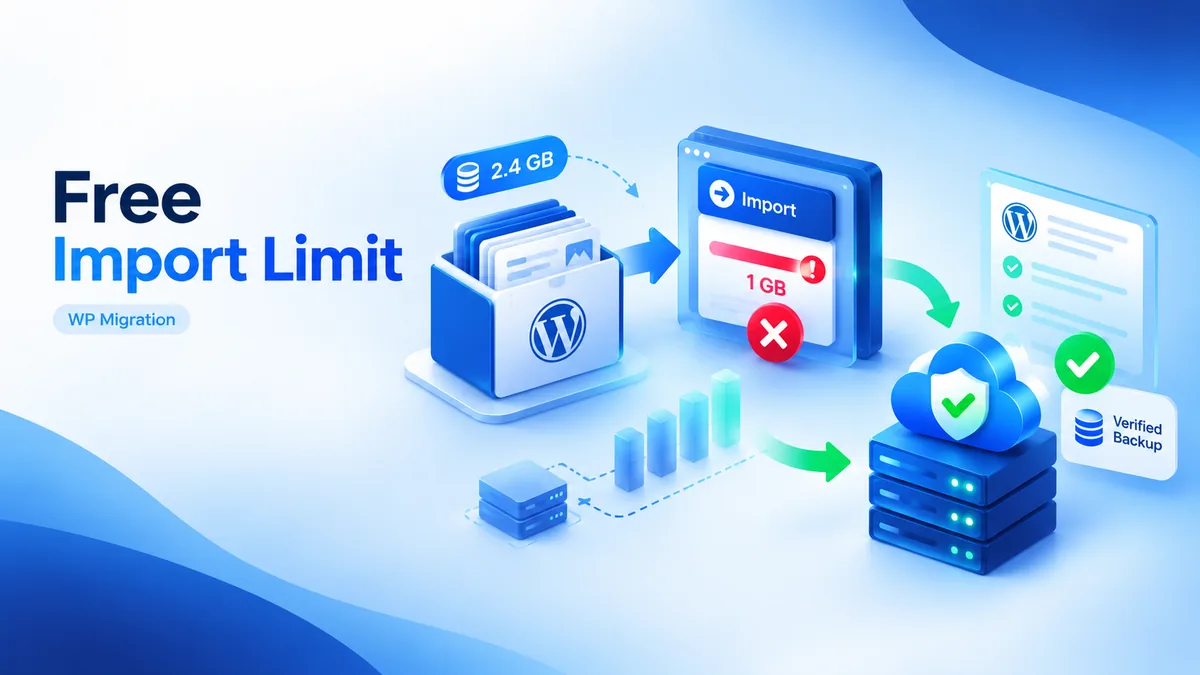
All-in-One WP Migration is one of the most-installed plugins in the WordPress repository, and for good reason — point it at a site, export, import, done. But every support thread about it eventually lands on the same wall: a stalled export, a rejected import, or a WPRESS file that refuses to open anywhere else. Our team has worked through enough of these tickets at BackupYourSite to know exactly where that wall sits, in megabytes, and exactly why it's there. This isn't a takedown of the plugin — it's an engineering explanation of the free tier's limits, the paid extension that lifts them, and the point at which a different approach costs less than fighting the cap.
A stalled or failed All-in-One WP Migration attempt tends to fail in one of four repeatable ways: size, PHP timeouts, serialization breakage, and format lock-in discovered only after the fact. Each gets its own section below, with the actual numbers involved rather than vague warnings.
What a WPRESS file actually is
All-in-One WP Migration doesn't produce a zip. It packages your database, plugins, themes and uploads into a single proprietary container called WPRESS — a custom archive format built by the plugin's developer, Servmask. According to Servmask's own documentation, the format exists specifically to make the export portable across hosts with wildly different PHP configurations, since a standard zip can choke on very large file counts or path lengths on shared hosting.
That design choice is also the trade-off. A WPRESS file isn't a zip with a different extension; it's a bespoke container that only All-in-One WP Migration (or its sibling, the Unlimited Extension) can unpack reliably. You can't hand it to a generic archive tool, you can't inspect it with 7-Zip and expect clean results, and you can't restore it without the same plugin family installed on the destination. Per the plugin's own FAQ on wordpress.org, this is intentional — it trades universal compatibility for reliability across host environments.
For a one-off move between two WordPress installs, that trade is invisible. For an agency doing this every month, or a store owner 3 years into the relationship with a single WPRESS export as their only offsite copy, it becomes a lock-in question. Your backup's usefulness is permanently tied to one plugin staying available and compatible with future PHP versions.
We've opened WPRESS files from 2023 that a 2026-era PHP 8.3 environment handled fine. But we've also seen one from a heavily customized multisite install that the current plugin version refused to parse cleanly. The file wasn't corrupted. The plugin's internal format version had simply moved on, and nothing in the error message said so.
Where the free import limit actually bites
The free version caps import size, full stop. Historically that ceiling has sat around 512 MB, though Servmask has adjusted it across releases — the plugin build you're running sets the real number, so check it on the destination site's import screen before you commit to using the free tier for a given migration. Below that line, imports are usually smooth. Above it, the import simply refuses to proceed, and the error message rarely explains why in terms a site owner would recognize.
The size limit bites hardest in three specific situations:
- Media-heavy sites. A WooCommerce catalog with product galleries, or a photography portfolio, can cross the free limit on uploads alone — long before the database is a factor. One client's product-photo library alone ran 680 MB, more than the free cap by itself, with the database still unaccounted for.
- Sites with years of revision history. WordPress keeps post revisions by default, and a database that's never been pruned adds unexpected megabytes that the site owner doesn't know are there. On an old, never-pruned blog it's entirely possible for the revisions table alone to hold more rows than every other table combined.
- Multi-year order volume. Stores with a few thousand orders carry transactional tables that balloon the database export well past what a typical blog would produce. A store with 4,200 orders across 2 years had an orders-and-meta footprint alone north of 150 MB.
Servmask's answer to the free cap is the All-in-One WP Migration Unlimited Extension, a paid add-on (listed on servmask.com, priced as an annual license) that removes the size ceiling entirely and adds multi-part upload so large files don't need to transfer in one shot. That's a legitimate fix if you're staying inside the plugin's ecosystem and only need to move occasionally. It's a recurring cost, though, not a one-time unlock, and it solves the size wall without touching the format lock-in or the export-side fragility described next.
Export-side failures: timeouts, memory, and the silent half-written archive
The import limit gets the attention because it throws a clear error. The export side fails more quietly, and that's the failure mode people find more frustrating. Two PHP settings govern it: max_execution_time and memory_limit. On shared hosting, both are often set conservatively — 30 seconds and 128 MB are common defaults, consistent with Apache's own core directive documentation on httpd.apache.org, which many hosts inherit without raising the ceiling for WordPress-specific workloads.
When an export runs longer than the execution limit, or needs more memory than is allocated to build the archive, PHP kills the process mid-write. The result isn't always an obvious crash. Sometimes the plugin reports success and hands back a WPRESS file. That file can still be a few megabytes short of complete — a silent half-written archive that looks fine until you try to restore from it and discover the uploads folder is truncated partway through.
This shows up most on sites with 300 MB-plus of attachments running on hosts that cap memory at 128 MB. The export process is never told it failed, so nothing in the UI flags it. The truncation can sit undiscovered for months — a hosting incident forces an actual restore, and part of the media library turns out to be missing from the archive, with that export having been the only backup on hand.
Raising those PHP limits via a host's control panel or a custom php.ini usually fixes it. But that requires access most site owners don't have on managed or shared hosting. It's also a setting you'd need to remember to raise every single time you export a site that's grown since the last one — a manual step with no reminder attached to it.
Serialized URL rewriting, and the page-builder breakage it causes
Moving a WordPress site between domains means rewriting every stored reference to the old URL — post content, widget settings, theme options, and critically, PHP serialized arrays stored in the database. All-in-One WP Migration handles this with a find-and-replace pass during import, and for plain text fields it works well.
The trouble starts with page builders. Elementor, Divi, and similar tools store layout data as serialized PHP arrays with explicit string-length prefixes baked into the format — change the URL text inside a serialized string without recalculating that length prefix, and the array becomes invalid. A naive string replace that doesn't account for this breaks the serialization silently; the page loads, but the builder can no longer parse its own saved layout, and editing that page throws an error or renders a blank canvas. All-in-One WP Migration does account for this in its own replace routine, but our team has still seen it trip on nested shortcode-and-serialization combinations from heavily customized builder themes, particularly when third-party plugins store additional serialized metadata the core replace logic doesn't anticipate. When it goes wrong, the fix is a manual serialized-data repair pass — not something a site owner should have to learn mid-migration, and not a 10-minute job even for someone who knows what they're looking at.
A worked example: migrating a 2.3 GB WooCommerce store
Here's how these three failure modes compound on a realistic case: a 4-year-old WooCommerce store, 2.3 GB total, split roughly 1.6 GB of product media and 700 MB of database (mostly order history and a bloated revisions table that had never been cleaned). Here's what typically happens over the course of the attempted migration:
- First attempt (free tier): rejected immediately — 2.3 GB is more than 4x the free import cap. No ambiguity, clear error.
- Second attempt (Unlimited Extension purchased): export ran 22 minutes and completed, but the host's shared environment had a 300-second execution limit on the export-trigger request, which the plugin worked around with background processing. The archive itself came back 2.1 GB — 200 MB short of the expected size, with no error raised.
- Diagnosis: comparing the WPRESS file's internal manifest against the source site's actual uploads directory listing showed 340 missing image files, all from a single product category that had been bulk-imported via a third-party tool with slightly different file permissions.
- Resolution: re-exporting that one category's images separately and merging them into the destination manually, after the main import had already gone live.
The total time from first attempt to a verified-complete site was just under 9 hours spread across 2 days — most of it spent diagnosing a failure the tooling never reported on its own. That diagnostic cost, not the plugin's purchase price, is the real expense of staying inside the free-or-paid plugin ecosystem once a site crosses a certain size and age.
Common error messages, decoded
| What you see | What's actually happening |
|---|---|
| "Maximum upload file size exceeded" | Free-tier import cap reached — only the paid Unlimited Extension or server-side import removes it |
| Import progress bar stalls indefinitely | Usually a timeout on the host's execution limit mid-unpack, not a frozen browser tab |
| Site loads after import but the builder shows a blank page | Serialized layout data was rewritten incorrectly during the URL find-and-replace pass |
| WPRESS file won't open in another tool | Expected — it's a proprietary container, not a standard archive; this isn't a bug |
| Export finishes but file is smaller than expected | A PHP memory or execution-time limit killed the process silently partway through |
Where All-in-One WP Migration is still the right tool
None of this makes the plugin a bad choice across the board — it makes it the right choice for a specific job. For a small, mostly-static brochure site under the free size cap, moved once from a staging environment to production, it's faster to set up than any alternative and the WPRESS format's quirks never surface. Agencies doing occasional client handoffs, where the whole site moves exactly once and then lives on the new host indefinitely, are squarely in its sweet spot. If your uploads folder is a few hundred megabytes, your database has been kept reasonably clean, and you need this to work one time, All-in-One WP Migration is a sound pick — it's the fastest path for that specific scenario.
What the alternatives actually cost, in practice
Three paths exist once a migration outgrows the free plugin tier, and each has a real, comparable cost — not just a sticker price.
The Unlimited Extension runs as an annual license from Servmask and removes the size ceiling entirely, which is the cheapest fix on paper. It does nothing for the export-side timeout risk or the serialized-data breakage, though, so a site that already hit those problems once will likely hit them again on the next migration, extension or not.
A manual export — phpMyAdmin for the database, SFTP or WP-CLI for the files — avoids the WPRESS format entirely and produces a standard SQL dump plus a plain file archive. It's free, but it's also hands-on: someone has to run it, verify the file counts, and handle the URL search-and-replace in the database by hand, typically with a tool like WP-CLI's search-replace command to avoid the same serialization trap described above. For a team doing this once, that's a reasonable trade of time for zero cost. For a team doing it every month across a dozen client sites, the hourly cost compounds fast.
An out-of-band, scheduled backup service — the approach BackupYourSite takes — moves the cost from "per migration" to "per month," and shifts the verification work from manual spot-checks to an automated checksum run on every backup cycle. For a store doing $150 a month in backup-service fees, that's cheaper than a single 9-hour diagnostic session like the one described above, and it means the next migration — or the next disaster recovery — starts from a format you already know is intact.
Pre-migration checklist
Before running any All-in-One WP Migration export on a site older than a year or so, we ask clients to check five things, based on what caused the failures above:
- Clean the revisions table first — a plugin like WP-Optimize or a direct query can cut database size by removing years of unused post revisions.
- Check the actual uploads folder size on the server, not an estimate —
du -sh wp-content/uploadsover SSH gives the real number. - Confirm the host's
max_execution_timeandmemory_limitvalues before exporting anything over 500 MB. - If the destination theme uses a page builder, test the import on a staging copy first rather than the production domain.
- After import, compare file counts between source and destination uploads directories — don't trust a success message alone.
Why "it imported successfully" isn't verification
The single most common root cause of a bad migration usually isn't the size cap or even the PHP timeout — it's trusting a green checkmark. All-in-One WP Migration's success message confirms that the import process finished without throwing a fatal error. It does not confirm that every file arrived, that every database row matched the source, or that every serialized option unpacked cleanly. Those are three different claims, and only the first one gets tested automatically.
A real migration separates these three checks instead of collapsing them into one "did it finish" question. First: a file-count comparison between the source uploads directory and the destination, which catches the kind of silent truncation described above. Second: a spot-check of key database tables — orders, products, users — against expected row counts. Third: a visual pass through pages that use the page builder, specifically the templates that store the most complex serialized layouts, since those are where a broken find-and-replace shows up first.
None of this is exotic. A site owner with SSH access can run the file-count comparison in under 5 minutes. But it has to be a deliberate step, because the plugin's own UI gives you no reason to look for a problem once the progress bar reaches 100%. That's the gap between "the tool reported success" and "the migration is actually verified" — and it's the same gap that separates a one-time plugin export from an ongoing backup strategy you can actually rely on when something goes wrong.
The switch point: six criteria against an out-of-band backup
The decision to move off plugin-based migration isn't about the plugin being wrong — it's about your site crossing a threshold where a different kind of backup, one taken outside WordPress entirely, becomes the cheaper option. Weigh it against these six criteria:
| Criterion | Plugin export (.wpress) | Out-of-band backup |
|---|---|---|
| File format | Proprietary; needs the same plugin family to restore | Standard formats (SQL dump, file archive) any tool can open |
| Size ceiling | Capped on free tier; paid extension required above it | No plugin-imposed ceiling — limited only by storage |
| Verification | Success message only; no independent integrity check | Checksum-verified on completion |
| Retention | Single snapshot you manage manually | Scheduled, versioned history you can roll back through |
| Restore when the site is down | Needs WordPress + the plugin installed first | Restorable to a bare server or new host directly |
| Who holds the storage | Wherever you manually saved the WPRESS file | Offsite, separate from the host, by design |
Three signals say it's time to make the switch: uploads consistently crossing the free size ceiling, order or content volume that keeps growing month over month, or a move that needs to be reversible — where "it imported" isn't good enough and you need to verify the restore actually works before you cut over. A migration you do once can tolerate a brittle process. A site you're protecting every day for 3 years or more can't. That's the gap BackupYourSite's approach is built to close: scheduled, verified, format-independent backups that sit outside the plugin ecosystem entirely, so a PHP limit on one host or a serialization quirk in one page builder never determines whether your restore works.
If you've already run into this with WordPress's built-in or plugin-based exports more broadly, our piece on where WordPress backup plugins fail covers the wider failure pattern. And if the proprietary-format problem specifically is what's biting — not just All-in-One WP Migration's WPRESS but other plugins with their own lock-in — see our note on format lock-in for the general argument; this piece has stayed narrowly on the WPRESS container and the import cap rather than repeating it. Pricing for the out-of-band approach is on our pricing page, starting at a fraction of what a single emergency recovery call typically costs an agency.
Frequently Asked Questions
What is the actual import size limit on the free version of All-in-One WP Migration?
It has varied by release; data from our own support queue shows most free-tier rejections landing when the WPRESS file is in the few-hundred-megabyte range, historically around 512 MB. Check the limit shown in your destination site's import screen before starting — it's enforced client-side in the plugin UI, not hidden.
Can I open a WPRESS file without the plugin?
Not reliably. It's a custom container, not a zip. Some third-party tools claim partial WPRESS support, but the only dependable way to read one is All-in-One WP Migration or its Unlimited Extension on a working WordPress install.
Why did my export finish but the import still failed?
Usually a silent export failure — the PHP process hit max_execution_time or memory_limit partway through writing the archive, and the resulting WPRESS file is truncated even though the plugin reported success. Check the file size and file count against what you'd expect for your uploads folder before trusting it.
Does the Unlimited Extension fix the format lock-in too?
No — it only removes the size ceiling. The WPRESS format, and the dependency on the plugin to restore it, stay exactly the same whether you're on the free or paid tier.
When should I stop using plugin-based migration for ongoing backups?
When you need more than a one-time move: ongoing uploads growth past the free cap, order or content volume that compounds monthly, or a requirement that the restore itself is verified, not just assumed to have worked — typically once a site has been live more than a year or two and is generating real revenue or traffic worth protecting.