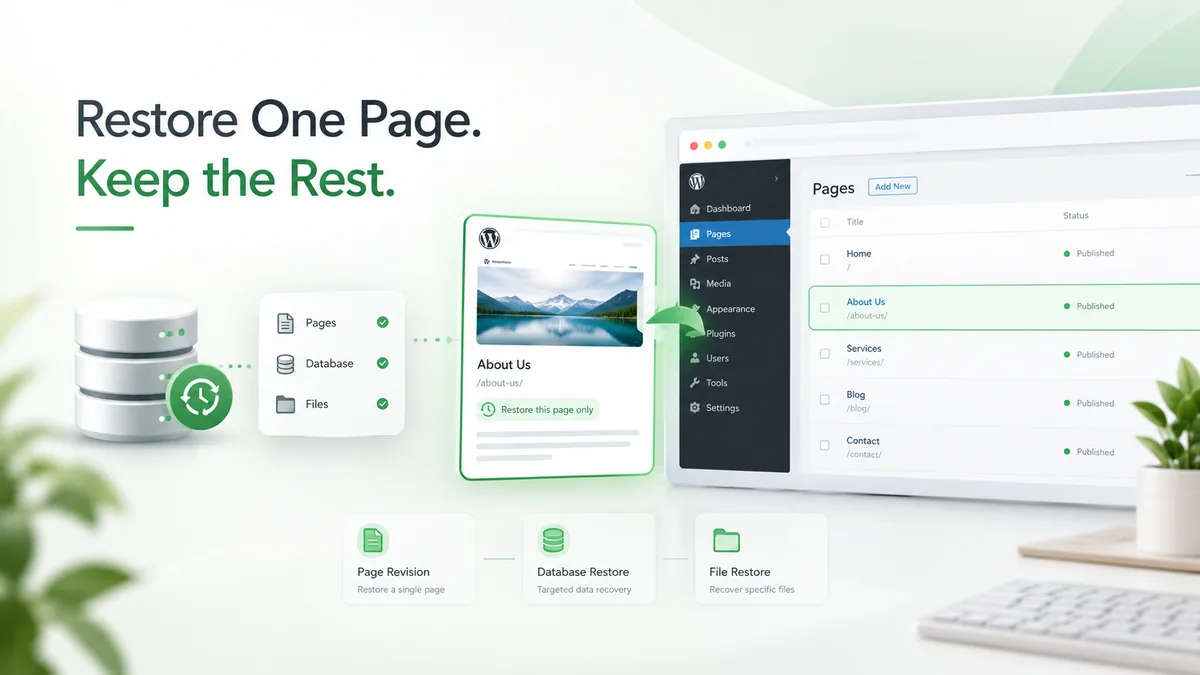
Someone edited the About page an hour ago. Now it looks wrong. Or a page builder update quietly ate a section that was fine yesterday. The instinct is to reach for "restore the whole site from last night's backup." Don't. That instinct is how a site owner trades one wrong paragraph for a full day of lost orders, comments, and form submissions on every other page. The actual request is almost never "put everything back." It's "put yesterday's version of this one page back, and leave today's data alone." This guide walks through three ways to do that: WordPress's built-in revisions, direct database-row surgery, and file-level extraction from a full archive. It's explicit about what each method silently misses, so you don't find out the hard way.
What a "page" actually is in WordPress
Before touching anything, it helps to know what you're restoring. A single page is not one database row. According to WordPress.org's own documentation, a published page is made of several parts working together. There's a wp_posts row holding the title, content, status, and dates. There's a set of wp_postmeta rows carrying SEO fields, page-builder layout data, and custom fields — often 20 to 60 rows for one page built with a modern builder. If the page carries any taxonomy, there are term relationships in wp_term_relationships. And there are attachment rows plus physical files in wp-content/uploads for any embedded images.
Restore the wp_posts row alone and paste it onto a page built in Elementor or Gutenberg, and you'll get the old title back. You won't get the layout. You'll get a wall of raw shortcodes or block JSON instead, because the layout lived in postmeta you never touched. This exact mistake can cost three hours of manual rebuilding, after what should have been a five-minute restore.
Built-in revisions: what they cover, and where they run out
WordPress has kept post revisions since version 2.6, released in 2008. Revisions are the first thing to check. Open the page in the block editor. Click the revision count near the top of the sidebar. Scroll the slider — each entry is a full snapshot of post_content at that save. For a page edited a few times today, this alone solves the problem in under 2 minutes, with zero database work.
Two limits matter here. First, the WP_POST_REVISIONS constant in wp-config.php caps how many revisions are kept. Plenty of hosts set it to 10 or leave it unlimited. Some managed hosts set it as low as 5, to control database bloat, and WordPress prunes the oldest once that cap is hit. Second, autosave revisions are pruned automatically after 7 days by wp_scheduled_delete, unless a plugin intervenes. So a change from three weeks ago — one nobody noticed until this morning — may already be gone from revisions entirely, even though the site's nightly backups still have it.
It's common to find revision limits set well under 10, or revisions disabled outright by an optimization plugin trading version history for a smaller database. Before assuming the editor's slider shows everything, check wp_posts directly, filtering on post_type = 'revision' and post_parent = <page ID>, to see exactly what survives.
When revisions don't reach far enough: restoring from a full SQL dump
If the version you need predates what revisions kept, the next source is a full database backup. But importing that whole dump would roll back every order, comment, and form entry created since. That's the outcome we're trying to avoid. The fix is to pull just the rows for one page out of the dump, without importing the rest of it.
A full mysqldump file is plain SQL text. It's organized as one INSERT INTO wp_posts VALUES (...) statement — sometimes one giant multi-row statement — per table. On a site with a known page ID, grep for that ID inside the wp_posts insert block first:
grep -n "wp_posts\` VALUES" backup.sql | head -1
Then extract the surrounding block with sed, using the line range reported, and pull out the tuple matching the page's ID with a targeted pattern. Don't open a 400 MB text file in an editor to hunt for it by eye. The same walk-through applies to wp_postmeta, filtered on post_id = <page ID>. This is the step people skip, and it's exactly the step that loses a page builder's layout.
A cleaner route on a Linux host: spin up a disposable database — a throwaway MySQL container, or a spare database on the same server — and import the full dump there. Then run a single targeted export from that copy:
mysqldump --no-create-info --skip-triggers \
 --where="ID=1842" backup_db wp_posts > page_1842_posts.sql
mysqldump --no-create-info --skip-triggers \
 --where="post_id=1842" backup_db wp_postmeta > page_1842_meta.sql
Import those two small files into the live database. The page comes back with its layout intact, while every other table on the live site stays untouched. This is the same method described in WordPress's advanced administration backup documentation, applied to a single page instead of a full recovery.
Page builders: why a naive row copy still breaks
Elementor stores its entire layout as a serialized PHP array inside a single _elementor_data postmeta row — often 50KB or more of nested JSON-as-a-string. Gutenberg stores block markup directly inside post_content as HTML comments, like <!-- wp:paragraph -->, so at least that part travels with the wp_posts row already.
The trap with Elementor specifically: copying _elementor_data from an old dump onto a live site can reference template or global-widget IDs that have since changed. The restored page then renders with a missing-widget placeholder, instead of the original design. After any page-builder restore, check Elementor's own cache. Go to Elementor > Tools > Regenerate Files. Skip that step, and the page keeps rendering last week's stale styles even though the content underneath is current.
Why restoring a whole database "just to be safe" backfires
The most common self-inflicted data loss isn't a bad backup. It's a good backup applied too broadly. A site owner imports last night's full SQL dump to fix one page, and every order, comment, form submission, and password reset created since that dump vanishes along with it. On a store doing even a modest volume, a same-day full rollback can mean 15 to 30 lost orders. Each one has to be manually re-entered from email receipts, if the emails were even sent in the first place.
Per the decision tree below, reach for a full-database restore only when the damage is genuinely site-wide — a botched plugin update that broke every page, or a hack. For one wrong page, a full restore is always the wrong tool. It solves the visible problem by creating a much bigger, less visible one.
When the real problem is a file, not the database
Not every "broken page" is a content problem. If a page suddenly shows a fatal error, a blank white screen, or a template that's clearly using the wrong layout, the cause is often a corrupted or partially uploaded theme file. Maybe a template was edited through the theme editor and saved with a syntax error. Maybe an FTP transfer failed and truncated a .php file mid-upload. No amount of restoring wp_posts rows fixes that, because the content in the database was never wrong to begin with.
The tell: check the page's actual HTML output — view source — against what the editor shows. If the editor's content looks fine but the front end is broken or blank, go to the file system, not the database. A file-level restore means re-uploading the specific theme or plugin file from a backup archive. Most backup plugins, UpdraftPlus and Duplicator among them, store these files as a dated .zip alongside the SQL dump. No SQL runs at all in this case.
Decision tree: four different restores for four different problems
- Content changed (text edit, image swap): check revisions first. Usually solved in under 2 minutes, with no database work.
- Layout broke after a builder update: a targeted
wp_postmetarestore for that one post ID, then clear the builder's own CSS cache. - Page is blank, erroring, or clearly rendering the wrong template: a file-level restore of the specific theme or plugin file, not a database operation.
- Whole site down, multiple pages broken, or signs of compromise: that's a full-site recovery — a different job entirely from the single-page restores covered here. See our guide to restoring a hacked WordPress site for that scenario.
In practice, content-only fixes outnumber file-level fixes by a wide margin. Most "my page is broken" requests are solved by the first branch of this tree, not the last.
Building this into your backup routine, not just your recovery plan
None of the above is fast if your only backup is a single, undifferentiated full-site archive taken once a week. A backup strategy built for granular restores keeps at minimum two schedules running side by side: daily full-site snapshots retained for 30 days, and database-only snapshots on a tighter interval — hourly, or every 6 hours on an active site — so a single-page restore never means reaching back more than a few hours.
BackupYourSite's own automated backups are built around this split. See what our backup plans capture, and how restores are scoped for the specifics of granular, page-level recovery versus a full-site rollback. With frequent database snapshots, a single-page restore request can typically be resolved in minutes. On weekly-only backups it takes much longer, and can lose content entirely if the only surviving copy pre-dates the last edit by more than a week.
Common mistakes that turn a 5-minute fix into a half-day one
A few patterns show up again and again in our support queue. First: restoring straight onto the live site instead of a staging copy first, so a bad restore compounds the original problem instead of just reverting it. Second: forgetting to note the page ID before starting, then spending 20 minutes hunting for it again once the browser tab with the admin URL is closed. Third: assuming a security or caching plugin's own "restore point" feature covers page content, when it often only covers configuration settings, not post data.
Fourth, and most costly: restoring an old page over a live one without first exporting the current, "broken" version somewhere safe. If the new content wasn't actually wrong — if it just looked wrong because of a display bug — that content is gone the moment the old version overwrites it. Export first. It costs one extra minute and it's the difference between a restore and a second loss.
Verifying the restore actually worked
A restore isn't finished the moment the SQL import completes. Three checks catch the most common failures. First, load the page in an incognito or private window, not the tab you were already working in — a browser cache can show you the old broken version for several minutes after the fix is live, and that false negative sends people restoring the same page twice. Second, if the site runs behind a CDN or a host-level page cache, purge that cache explicitly; a database restore doesn't touch a CDN's edge cache, so visitors can keep seeing the pre-restore version for an hour or more if the cache TTL is set that long. Third, check the page's post_modified timestamp in wp_posts against the current time — if it still shows the broken edit's timestamp, the import didn't actually take, even if no error was thrown.
WordPress.org's own backups support article covers the general restore workflow, but it's written for full-site recovery and doesn't mention any of the three checks above, because they only matter once you're restoring a single page inside a live, otherwise-unchanged site.
A quick before-you-restore checklist
- Note the exact page ID, visible in the WP admin URL as
post=1842, before doing anything else. - Check revisions in the block editor first. It's free, it's fast, and it needs no database access.
- If revisions don't reach far enough, confirm you have a full-site backup old enough to contain the version you want.
- Extract only that page's
wp_postsandwp_postmetarows into a disposable database before touching the live site. - After import, clear any page-builder cache — Elementor's Regenerate Files, or your builder's equivalent — and check the page on the front end, not just in the editor.
- If the front end is blank or erroring, and the content looks correct in the editor, stop. You likely need a file-level restore, not a database one. See our explainer on what a WordPress backup actually contains for the file-versus-database distinction.
WordPress.org's support documentation covers the general backup mechanics well. What it doesn't spell out is the ID-targeted extraction workflow above — and that's the part that actually prevents a full rollback.
Frequently Asked Questions
Can I restore just one WordPress page without affecting the rest of the site?
Yes. Use the built-in revision history in the block editor for recent changes. For older changes, extract that page's wp_posts and wp_postmeta rows from a full database backup. Neither approach touches any other page, post, order, or comment on the site.
How long does WordPress keep page revisions?
Autosave revisions are pruned after 7 days by default. Regular saved revisions stay until the WP_POST_REVISIONS limit in wp-config.php is reached. At that point the oldest is deleted to make room for the newest — some hosts cap this as low as 5.
Why does my page look broken after I restore it in a page builder like Elementor?
The layout for a builder-made page lives in wp_postmeta — the _elementor_data field, for Elementor — not in wp_posts alone. Restoring only the posts row brings back the title and raw content but loses the visual layout. Restore both tables for that post ID, then clear the builder's CSS cache.
What's the difference between a single-post restore and restoring the full database?
A single-post restore imports just the rows tied to one page's ID, leaving every order, comment, form entry, and other page created since the backup untouched. A full-database restore replaces everything with the backup's snapshot, so anything created after that snapshot is lost.
My page content looks fine in the editor but the live page is blank — what do I do?
That's usually a file problem, not a content problem — a corrupted theme or plugin file, not bad data in the database. Restore the specific file from your backup archive rather than running any database restore.
Can I extract one page from a full SQL backup without importing the whole file?
Yes. Import the full dump into a disposable, throwaway database first. Then run a targeted mysqldump --where="ID=<page ID>" export of just that row, plus the matching wp_postmeta rows, from the throwaway copy. Import only those small files into the live site.
How often should backups run if I want fast single-page restores?
Daily full-site snapshots, plus more frequent database-only snapshots — hourly, or every few hours on an active site — keep the gap between "what changed" and "your last backup" small. A single-page restore then rarely means reaching back more than a few hours.
Does restoring a page also restore its images?
Only if you also restore the attachment rows and the physical files in wp-content/uploads that the page references. A posts-and-postmeta-only restore brings back text and layout but not new image uploads made after the backup.
What's the safest way to test a restore before committing to it?
Run it on a staging copy of the site first, if one exists, or at minimum export the current live version of the page before overwriting it. That way a restore that goes wrong is reversible, instead of becoming a second loss on top of the first.