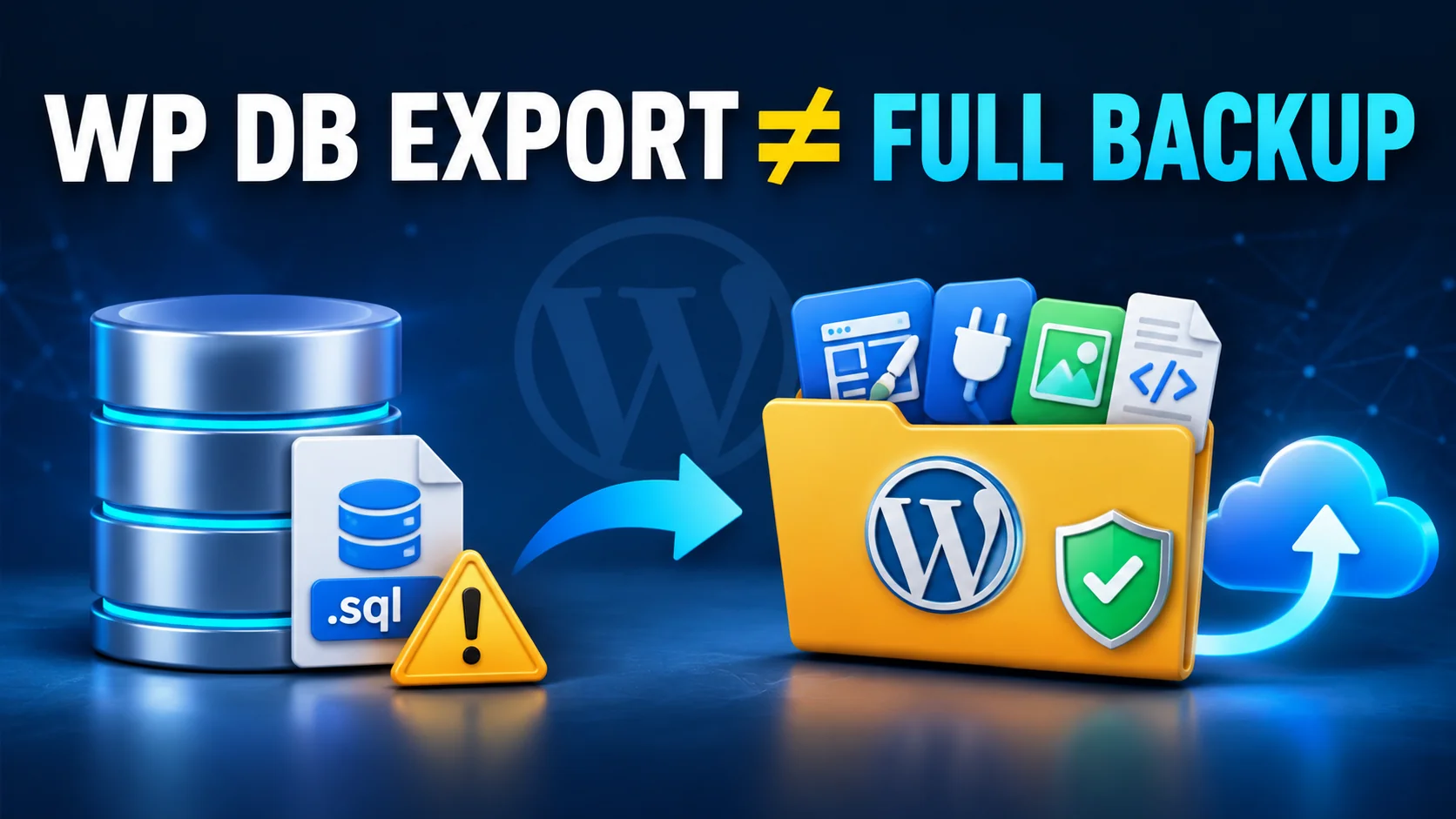
The one-line "backup" that leaves you with half a website
Search for wp-cli backup and you'll land on a dozen guides that run wp db export, call it done, and move on. That advice backfires often enough to be worth naming: a developer restores a "backup" after a hosting migration and finds a working database sitting next to a site with no theme, no plugins, and a blank uploads folder. The database export is real. It's also roughly half the site. WordPress splits its state across two places — the MySQL database (posts, settings, options, serialized widget data) and the filesystem (wp-content/themes, wp-content/plugins, wp-content/uploads, and wp-config.php). A backup that only touches one of those two is a partial backup wearing a full one's name.
This matters more for WP-CLI backups specifically because WP-CLI makes the database half so easy that it's tempting to stop there. wp db export runs in under a second on most sites. Tarring up a multi-gigabyte uploads folder takes longer, needs more disk headroom, and is the step people skip when they're in a hurry. That's exactly backward — the uploads folder is usually the part you can't regenerate.
What wp db export actually captures, and what it skips
Run this on any WordPress install with WP-CLI configured:
wp db export db-backup-$(date +%F).sql --add-drop-tableThat single command dumps every table — wp_posts, wp_postmeta, wp_options, wp_users, and whatever custom tables your plugins have added — into one SQL file. --add-drop-table adds a DROP TABLE statement ahead of each CREATE TABLE, so a restore onto a database that already has old tables doesn't collide with leftover schema. According to WP-CLI's own documentation for the db export command, it accepts the same connection flags as the WordPress install it's run from. There's no separate credentials file to maintain.
What it does not touch: your active theme's files, every installed plugin's code, every media file a visitor has ever uploaded, and wp-config.php. That file holds your database credentials and salts, per WordPress's own developer documentation on wp-config.php. Lose that file along with the server and you have a database export with nowhere to plug it in.
The combined pattern: database export plus a file archive
The fix the better WP-CLI backup guides actually use — and the one worth copying rather than the single-command version — pairs the SQL export with a tar archive of the parts the database can't hold:
wp db export db-backup-$(date +%F).sql --add-drop-table
tar -czf files-backup-$(date +%F).tar.gz wp-content/uploads wp-content/themes wp-content/plugins wp-config.php
mv db-backup-$(date +%F).sql files-backup-$(date +%F).tar.gz /var/backups/wordpress/
Three lines. Line one takes the database half. Line two takes the filesystem half, compressed. Line three moves both into a dedicated backup directory instead of leaving them sitting in the web root, where a misconfigured server could serve .sql files to anyone who guesses the filename. Take a 4 GB uploads folder on a VPS with 20 GB of free disk as an example — the compressed tar typically lands well under half the uploads folder's uncompressed size, since tar -czf's gzip compression does real work on themes and plugin code, less on already-compressed JPEGs.
If you're running this against a multisite install, add --url= to the wp db export line for each site in the network. A single database export covers the whole multisite database. But you'll want the files split per site, in case you ever need to restore just one.
Scheduling it with cron, not WP-Cron
A script you have to remember to run by hand isn't a backup strategy, it's a one-time snapshot. The standard move is a crontab entry that fires the same three lines on a schedule:
0 2 * * * cd /var/www/html && wp db export db-backup-$(date +%F).sql --add-drop-table --allow-root && tar -czf /var/backups/wordpress/files-$(date +%F).tar.gz wp-content/uploads wp-content/themes wp-content/plugins wp-config.phpThat runs at 2 a.m. daily. --allow-root is there because cron jobs under the system crontab usually execute as root, and WP-CLI refuses to run as root without that flag as a safety check.
Here's the part most WP-CLI backup guides leave out. It's the actual reason to prefer this over a scheduled plugin task: this cron line is triggered by the server's own system cron daemon, not WP-Cron. WP-Cron only fires on an incoming page request. A low-traffic site can sit for hours with no visitor to trigger its scheduled tasks. A site with caching in front of it can serve cached pages that never touch PHP at all, so WP-Cron never fires there either. A system cron entry doesn't care whether anyone visits the site. It fires on the server's clock, every time, independent of traffic.
The honest twist: a cron job trades one failure mode for several others
We've watched developers treat "it dodges WP-Cron's reliability problems" as the end of the analysis. That's exactly where the script quietly stops being a backup system and starts being a liability. Dodging WP-Cron's specific failure mode doesn't mean the script is now reliable. It means the job moved from WordPress's scheduler to the server's. Every problem that scheduler doesn't solve is now yours to solve manually, which gets harder still on managed hosts where reaching the server over SSH takes a different route.
Hand-rolled cron backups tend to fail in the same three ways. Nobody is watching disk usage, so the backup directory fills up and the next wp db export fails silently with a half-written file. Nobody is rotating old archives, so a 90-day-old backup is still sitting next to last night's. And the files never leave the server. A database-only backup is already half a website. A database-plus-files backup that only lives on the same disk as the site it protects is still exposed to one failure: the server itself going down.
None of that shows up in a crontab until the day it matters. If you want the script to function as disaster recovery, not just a local snapshot, the archive needs an offsite copy. Add an scp or rsync line to a second server, or a push to object storage, as a fourth step after the tar command. That one addition is the difference between a backup and a copy of the site sitting next to the original.
Sizing the disk before you schedule the cron job
A detail trips up more WP-CLI backup setups than the script itself. The server running the cron job needs enough free disk to hold the archive it's about to write. That number has to account for more than just the live site's current size. Consider a WooCommerce store with 18,000 product images: a wp db export finishes in seconds and produces an SQL file in the hundreds of megabytes — order history and product meta add up fast. The tar step on the same site takes several minutes longer and produces a multi-gigabyte archive, almost all of it the uploads folder. A blog-only site with no store runs both commands in well under a minute combined, with total output well under 150 MB.
The rule we use: check actual disk usage with du -sh wp-content/uploads before writing the cron line. Then keep at least three times that figure free. The script writes a new archive on top of however many old ones haven't been rotated out yet. A server with 10 GB free running a nightly backup of a 3 GB uploads folder will fill its own disk inside four days, if nothing deletes the oldest files. That's the silent-failure case from the section above. It's avoidable with one extra line in the cron job: a find /var/backups/wordpress -mtime +30 -delete, appended after the tar command, which clears anything older than 30 days.
How to confirm the backup actually works before you need it
A file sitting in /var/backups/wordpress isn't proof of anything by itself. A WP-CLI-style export left as the only backup commonly fails in one of two ways during a later restore: either the .sql file truncated partway through, usually from the disk-full failure above, or it references a database charset the destination server doesn't have configured. That's a separate problem from the one this three-line script solves. But it shows up at the exact same moment: during a restore, under pressure, when it's too late to fix calmly.
Two checks catch both failure modes ahead of time. First, confirm the SQL file ends the way a complete export should. Tail it and look for the closing statements, rather than only checking that the file exists and has a non-zero size. Second, actually load the export into a scratch database on a separate server, at least once a quarter. A backup nobody has restored is a hypothesis, not a backup. That single habit, restoring on a schedule and not just exporting on one, is the piece of discipline that separates a cron script that works from one that only looks like it works until the day it's tested for real.
When this script is the right call — and when it isn't
This approach suits a specific person: a developer or agency with root access to the server, comfortable editing a crontab, who wants to see exactly what's being backed up and when. If that's you, the three-line pattern above, scheduled, with an offsite step added, is a legitimate WordPress backup — not a shortcut version of one.
It's also worth being direct about what you're signing up to maintain yourself. There's the retention window: how many old backups to keep before deleting them. There's the integrity check: confirming the .sql file isn't truncated before you trust it. And there's the restore test: actually loading the backup somewhere to confirm it works, not just confirming the file exists. A managed backup service automates those three on top of the export-and-archive step. That's the trade a lot of teams end up making, once the crontab has been quietly failing for a month and nobody noticed. If you'd rather not own that second half of the job, that's exactly the gap BackupYourSite's agentless backup is built to close, with the same database-plus-files coverage, plus the offsite push, rotation, and integrity check already running.
WP-CLI already earns its place in most developers' migration toolkit for a different reason — the serialized-data trap during a database migration is exactly the kind of problem a search-replace-aware tool like WP-CLI is built to avoid. Backup and migration are two different jobs for the same tool, and it's worth keeping both uses straight: one protects you against loss, the other protects you against a broken find-and-replace.
If you're a freelancer managing a handful of client sites rather than one server you control end to end, the per-site accounting gets messier fast — our no-plugins backup guide for freelancers covers the version of this problem where you don't have root on every client's host.
Frequently Asked Questions
Does wp db export back up my whole WordPress site?
No. wp db export backs up the MySQL database only — posts, options, and all serialized settings data. It does not capture your theme files, plugin files, the uploads folder, or wp-config.php. A complete backup needs the database export paired with a file archive of wp-content and wp-config.php.
How do I automate a WP-CLI backup with cron?
Add a crontab entry that runs wp db export and a tar command on a schedule, using --allow-root if the cron job executes as root. A typical entry runs once a day, for example at 2 a.m., and writes both files to a dedicated backup directory outside the web root.
What's the difference between WP-Cron and system cron for backups?
WP-Cron only fires when a page request hits the site, so low-traffic sites and sites behind a page cache can miss scheduled runs for hours. System cron, set up directly on the server (as in the crontab example above), fires on the server's own clock regardless of site traffic, which is why it's the more reliable trigger for a backup script.
Should WP-CLI backups be stored on the same server as the site?
Not if the backup is meant to survive a server failure. A database-plus-files archive sitting on the same disk as the live site protects against accidental deletion or a bad plugin update, but not against the server itself going down. Add an offsite copy — rsync, scp, or a push to object storage — as a final step in the script.