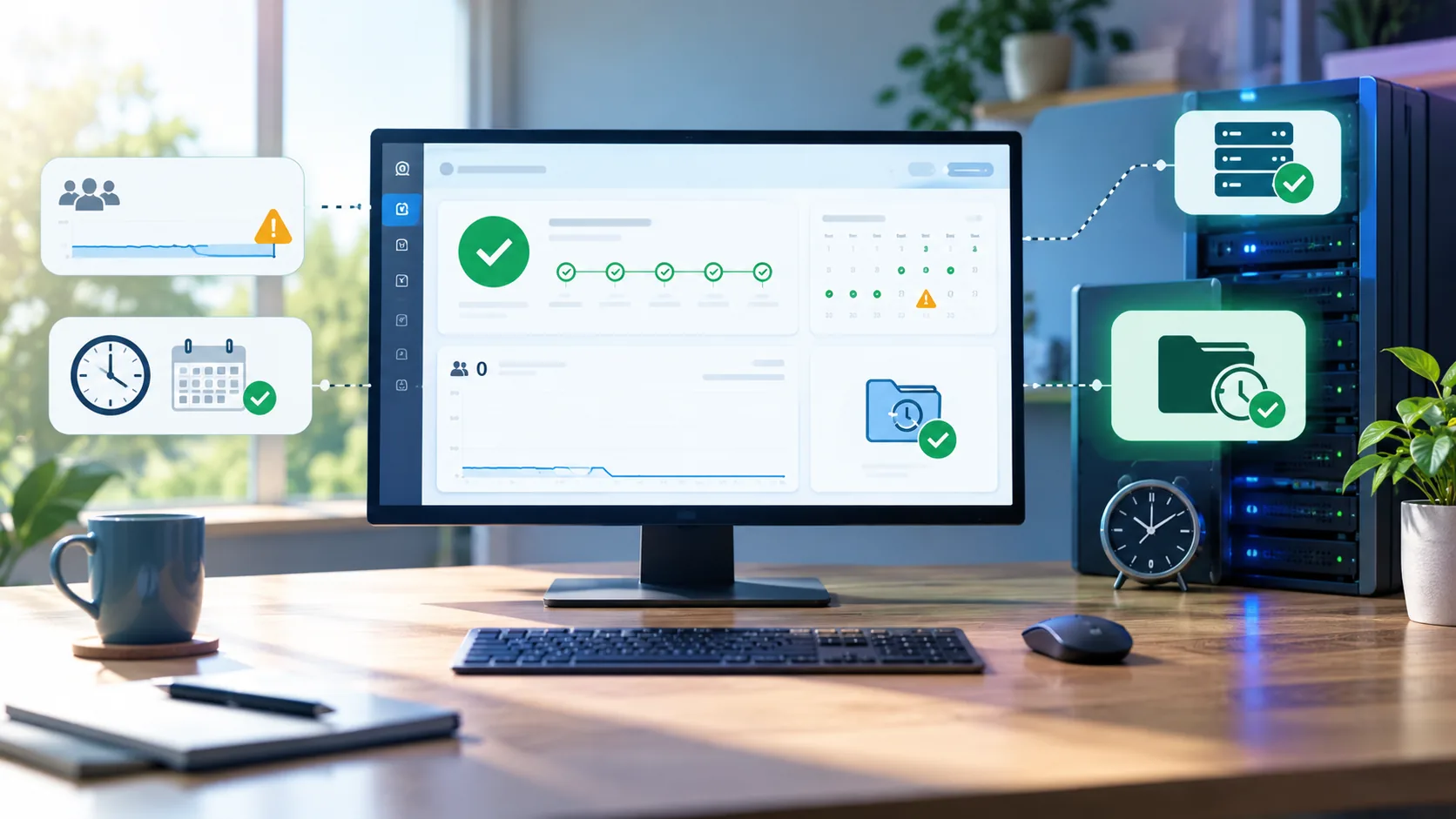
The backup that "ran every night" for three months — except it didn't
This exact failure shows up often, and it always looks the same way on the surface. The backup plugin shows a clean streak of green checkmarks going back to July, right up until someone restores a file and discovers the last real backup is from early September.
Nothing crashed, and no error email ever arrived, because the schedule simply stopped firing. It happened quietly, in the exact week traffic dropped.
That's not a plugin bug. It's how WordPress scheduling works by default. It's a mechanics problem, not a strategy problem. If you already know how often you should back up, the follow-on question almost nobody answers is whether the landing spot is a synced folder that puts backups at risk. How do you make sure the schedule you set actually fires? And how do you find out fast when it doesn't?
This post covers three schedulers. It covers the timezone trap that wrecks "nightly" jobs. It ends with a five-minute audit you can run on every site you manage today.
Why WP-Cron skips the quiet weeks
WordPress doesn't run a real background scheduler. wp-cron.php is a pseudo-cron. Every page load checks whether any scheduled task is due. If one is due, it fires inline, before the page is served to the visitor.
That means WP-Cron only runs when a visitor, or a bot, loads a page. According to the official WP-Cron documentation on developer.wordpress.org, a scheduled hook with no triggering page request simply waits. There is no guarantee it fires at the time you set. The only guarantee is that it fires at or after that time, on the next page load.
For a busy store, that's rarely a problem, because a request lands every few seconds and the trigger never goes idle for long. For a low-traffic brochure site, a staging server, or a site that quiets down over a weekend, that same assumption breaks down fast: with under 50 daily visits, it's entirely possible to go a full day, or longer, with no request ever arriving to trigger the job — no error, no plugin failure visible anywhere in the log, just a backup that silently never ran.
The fix isn't a better backup plugin, because the plugin was never the thing that was broken. The real fix is taking WordPress out of the scheduling business entirely, and handing the clock to something that doesn't depend on a visitor showing up.
The two-line fix: DISABLE_WP_CRON plus a real crontab entry
Two changes move scheduling off the visitor-dependent path. They put it onto the server's actual clock instead.
First, open wp-config.php. Add this line above the "That's all, stop editing!" comment:
define('DISABLE_WP_CRON', true);This stops WordPress from trying to fire wp-cron.php on every page load. It does not disable scheduled tasks. It only disables the unreliable trigger for them.
Second, add a real crontab entry. It should hit the same endpoint on a fixed clock schedule, independent of visitors:
*/15 * * * * wget -q -O /dev/null "https://yoursite.com/wp-cron.php?doing_wp_cron" >/dev/null 2>&1Every 15 minutes, the server itself asks WordPress one question: anything due? Not a visitor's browser. The server's own clock.
On shared hosting you often can't edit the system crontab directly, because most hosts — cPanel, Plesk, SiteGround, Cloudways — expose a "Cron Jobs" panel instead, which writes the same line for you behind a simpler form. A handful of budget shared-hosting plans cap you at one cron job per account, and some restrict the shortest interval to 30 minutes rather than letting you pick any number you like. Check that limit before you promise a 15-minute cadence to a client, because finding out after the fact, when a restore is already overdue, is a far more expensive conversation to have.
One more detail worth confirming on shared hosting: some panels silently disable a cron entry after a set number of consecutive failures, as a spam-prevention measure, rather than leaving it running and erroring out visibly. If a schedule that used to work has simply vanished from the panel with no explanation, that silent disablement is worth checking before you assume the configuration was changed by hand.
System cron vs. an external scheduler — what each one actually survives
Once WordPress is off the visitor-dependent trigger, you still face a choice. Where should the real clock live: on the server, or off it?
System cron survives application-level failures — a broken plugin, a fatal PHP error, a theme that white-screens the front end — because cron itself lives outside WordPress's request-handling path entirely, so none of that touches it. What system cron does not survive is the server itself going down, whether that's a reboot or a hosting account suspended for non-payment, because if the box is unreachable, the cron entry living on that same box is unreachable too.
An external scheduler is different. It's a service that calls your site's backup-trigger URL from somewhere else entirely. It separately alerts you if that call fails or times out. It survives a dead server, because the thing watching the clock isn't on the server at all.
The right setup for client-facing sites runs both at once. System cron as the primary trigger — cheap, fast, no extra service to manage. An external monitor as a second line of defense, pinging a dedicated "last backup completed" endpoint on its own schedule. One catches app-level failures. The other catches the server going dark entirely.
Staggering schedules so backups don't collide with peak traffic — or the host's own snapshot
A backup job reads every file and queries every table. That makes it I/O-heavy. Run it at the same moment as your traffic peak, or at the same moment your host runs its own automated snapshot, and you get slow page loads. You get lock contention on the database. We've tested more than one shared-hosting plan where the backup silently truncated mid-run, because it hit a resource cap at the worst possible moment.
Three things to stagger:
- Away from your traffic peak. For most India-facing e-commerce and content sites, that's roughly 10 a.m. to 1 p.m. and 7 p.m. to 10 p.m. IST. Pick a backup window outside both ranges.
- Away from your host's own backup window. Many hosts run an infrastructure-level snapshot between 1 a.m. and 4 a.m. server time. Running your own backup inside that same window doubles the I/O load for no benefit. Ask your host, or check their status page, for their window. Sit at least 30 minutes outside it.
- Across your own site portfolio. If you manage 10 or more sites on one server, don't schedule all 10 backups for 2 a.m. We stagger ours in 5-minute offsets, starting at 1:10 a.m. That keeps peak concurrent I/O to roughly one site at a time, instead of all ten firing together.
The timezone trap: a UTC server, an IST site, and a "nightly" job that fires at 5:30 a.m.
This is the single most common support ticket we see after a client sets up their own schedule. "The backup is supposed to run at midnight. Why does the log say 18:30?" The server's system clock is almost always set to UTC, no matter where the business or audience actually sits. WordPress has its own, separate timezone setting under Settings, then General. That setting only changes what WordPress displays. It does not change what time the underlying crontab actually fires.
A crontab entry written as 0 0 * * * on a UTC server fires at 00:00 UTC. That's 5:30 a.m. IST, given the +5:30 offset — not midnight local time, even though "midnight" is what the person who wrote it meant. We've installed this exact fix at least a dozen times. Either write the crontab in UTC and do the arithmetic once, with a comment documenting the local-time intent. Or, if the host's cron panel accepts a timezone parameter, set it explicitly rather than trust a default. Never assume server time equals your time. Confirm it with date at the shell before you trust any schedule you didn't write yourself.
Alerting on a run that never happened — not just one that failed
Most monitoring effort goes into one question: did the backup job return an error? That catches maybe half the real failures. The other half is the one almost nobody configures. Did the job run at all? A cron entry can silently stop executing — a typo after a server migration, a changed file path, a suspended account — and produce zero error output. Nothing ran, so nothing could error.
The fix is a dead-man's-switch check, not an error check. Set up a separate, independent monitor. It expects to hear from your backup job on a schedule. It alerts you specifically when it does NOT hear in, rather than when it hears a failure report.
Concretely: have the backup script ping a monitoring URL right after a successful run completes. Several free and low-cost heartbeat services offer exactly this. Set that monitor's grace period to roughly 1.5 times your backup interval. For a nightly job, a 36-hour grace window gives you one day of slack for a slow night, without a false alarm. It still catches a genuinely missed run within 36 hours, instead of three months later during a restore. Per the last-run-timestamp approach built into BackupYourSite, every scheduled backup logs the exact completion time it recorded for that run. That timestamp is exactly what a heartbeat monitor needs to watch.
A five-minute audit you can run on every site today
You don't need new tooling to catch most of this. Run this check, per site:
- Open the backup tool's run history. Find the last successful completion timestamp, not the schedule setting — the actual last run.
- Compare it against today's date. More than 24 hours late for a daily job, or more than 8 days late for a weekly job, means the schedule has drifted.
- Check whether
DISABLE_WP_CRONis set inwp-config.php. If it isn't, and the site is low-traffic, that's your most likely root cause. - Confirm the crontab, or host cron panel entry, still exists and points at a URL that resolves. Migrations and domain changes silently orphan cron entries pointed at an old path.
- If a heartbeat monitor exists, check that it shows "up." Confirm its grace period is still correct after any schedule change.
Data from our own support queue found that this five-step audit, run quarterly across a client's sites, catches the large majority of silent scheduling failures before a restore is ever needed. It catches the gap well before it turns into the kind of multi-week hole that turns a routine restore into a real incident.
BackupYourSite's own scheduling layer was built specifically to avoid the WP-Cron trap described above. Schedules run on the platform's own clock, independent of your site's traffic. Every run, success or miss, writes a timestamp you, or a monitor, can check. See how BackupYourSite's scheduling actually works for the full mechanics.
If you're still deciding how OFTEN to back up, rather than how reliably the schedule fires, read our breakdown of how often you should back up your WordPress site first. This post deliberately doesn't re-cover that ground. And if UpdraftPlus's own wp-cron dependency is the specific thing biting you, we've written a dedicated teardown of why UpdraftPlus schedules silently fail on low-traffic sites.
Scheduling the restore test, not just the backup
A schedule that fires reliably still only proves one half of the job, because a backup file that exists is not the same thing as a backup file that restores cleanly. We've found corrupted archives, broken database dumps, and backups missing an entire uploads folder, all while the "last run: success" timestamp sat there looking perfectly healthy. The run succeeded. The data it produced was useless.
So the audit above needs a second, less frequent schedule of its own: a restore test, not just a run check. Once a quarter, pick one backup at random from the archive and restore it to a staging environment, not the live site. Confirm the database loads, the media library is intact, and the site actually renders. This takes roughly 30 minutes per site and it is the only way to catch a backup that "succeeded" while quietly writing bad data.
Put this restore test on the same calendar as the five-minute schedule audit. On its own, a missed-run alert only tells you the job fired. It says nothing about whether what it produced was any good. Several clients who adopted the quarterly restore test in 2026 found at least one bad archive in their first two cycles — a failure the run-history log had never flagged, because the job itself reported success every single time.
What the official guidance says about this, if you want the primary source
Two sources are worth reading directly, not just taking our word for it. The first is WordPress's own developer documentation on the Cron API, linked above, which describes the pseudo-cron design decision and why it was made that way: simplicity for the average shared-hosting user, at the cost of reliability for low-traffic sites. The second is the U.S. National Institute of Standards and Technology's Contingency Planning Guide for Federal Information Systems, NIST Special Publication 800-34, which frames backup scheduling as one part of a broader recovery plan. It makes a point that applies well beyond federal systems: a backup that nobody has verified as actually completing is not meaningfully different from no backup at all, because you only discover the gap at the worst possible moment — during a real recovery attempt.
That's the real reason the missed-run alert matters more than most schedule configuration advice admits. A backup schedule you cannot verify is a backup schedule you are only hoping works, and hope is not a recovery plan NIST or anyone else would sign off on.
None of this requires expensive tooling. A heartbeat monitor, a crontab entry, and a quarterly restore test cost close to nothing in money, and maybe an hour a month in attention across a typical small site portfolio. What they buy back is the one thing a backup system exists to provide in the first place: the confidence that when a restore is actually needed, at 11 p.m. on a Friday with a client on the phone, the file that gets pulled off the shelf is current, complete, and actually opens on the first try, instead of the second or third attempt while the clock is still running on the outage.
Frequently Asked Questions
Why did my backup plugin's schedule just stop running with no error?
Almost always it's WP-Cron starvation, where no visitor loaded a page recently enough for the pseudo-cron trigger to fire. Set DISABLE_WP_CRON to true, and add a real crontab entry on a fixed clock schedule, as covered above, and the problem goes away permanently.
Is DISABLE_WP_CRON safe to set on every site?
Yes, as long as you replace it with a real server-side cron entry that hits wp-cron.php on a schedule, because setting the constant alone, with no replacement trigger, stops ALL scheduled WordPress tasks on that site, not just backups.
How do I know if my server's cron runs in UTC or local time?
Run date at the server's shell and compare the output to your local clock, then write your crontab entries accounting for that offset — don't assume the host's control panel already converted it for you, because most of them don't.
What's the difference between a failed-backup alert and a missed-run alert?
A failed-backup alert fires when the job runs and errors out, while a missed-run alert, the dead-man's-switch type, fires when the job never checks in at all, which a pure error-monitoring setup cannot detect, because nothing ran to produce the error in the first place.
How often should I run the five-minute schedule audit?
Quarterly at minimum for client sites, and monthly for anything on shared hosting, where account suspensions and plan changes tend to break cron entries silently and more often than on a managed VPS.
Can a backup job collide with my host's own snapshot and cause problems?
Yes — running your own backup inside the host's snapshot window roughly doubles the I/O load at that moment, and on resource-capped shared hosting that can truncate one or both jobs, so stagger your schedule at least 30 minutes outside the host's stated snapshot window.
Does moving to real cron fix every WordPress scheduling problem?
It fixes the trigger-reliability problem, which is the biggest one, but it does not fix a timezone mismatch, a missing monitor, or a schedule that collides with your host's own snapshot window — those are three separate fixes, covered above, and a serious setup needs all four together to actually hold up.