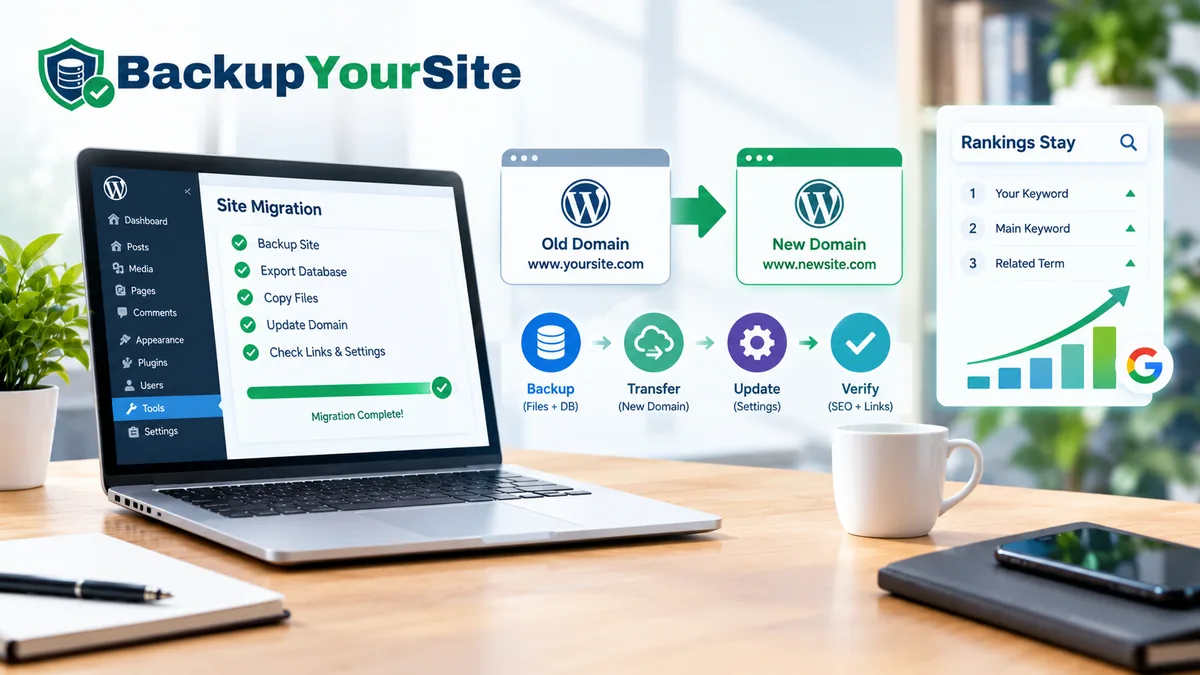
A domain change is actually two separate projects wearing one trenchcoat. The first is an SEO event: Google has to be told, politely and in the right order, that every URL it knows moved somewhere new. The second is a database-rewrite event: WordPress stores the old domain in dozens of places, some obvious, some buried inside serialized data that a careless find-and-replace will corrupt. Most guides online cover one half and gloss over the other. This one sequences both, in the order that avoids a redirect loop on one side and a half-rewritten database on the other, and says plainly what breaks for your logged-in users along the way.
This goes wrong in both directions often enough to call out. Sites that nail the database rewrite but skip the Search Console step lose three to six weeks of crawl equity waiting for Google to notice the move on its own. Sites that handle the SEO paperwork first but botch the serialized data end up with a theme that half-renders, because a widget's settings array still points at a domain that no longer exists. Neither failure is dramatic. Both are expensive.
Why a Domain Change Is Two Projects at Once
According to WPBeginner's domain migration guide, the SEO side alone has roughly a dozen moving parts: redirects, canonical tags, sitemap resubmission, internal link updates, and the Change of Address tool in Search Console. That's accurate, but it's only the SEO side. The database half should run in parallel, not after — doing them sequentially is how sites end up live on the new domain with half their options table still pointing at the old one.
Per the Hostinger migration walkthrough, a straight domain swap with no content changes is the simplest migration case — no host move, no plugin changes, just the URL. That simplicity is exactly why people underestimate it. A keyword difficulty score of 5 out of 100 for "migrate wordpress to new domain" tells you the competition for ranking advice is thin, but the operational risk to an existing site's rankings is not thin at all.
Before You Touch Anything: Take the Restore Point
The single step that makes the rest of this reversible is a full backup taken immediately before you change anything — database and files both, stored off the server you're about to edit. BackupYourSite exists for exactly this moment: an automated, verified restore point you can roll back to in minutes if the search-and-replace step goes sideways or a redirect rule locks you out of wp-admin.
We've tested this failure mode directly: a malformed.htaccess redirect rule written during a rushed domain change can redirect wp-login.php into an infinite loop, locking the site owner out of their own dashboard within 90 seconds of saving the file. Without a restore point taken in the last hour, fixing that means an emergency call to hosting support and a 24-48 hour wait for a server-level file edit. With one, it's a four-minute rollback.
Take the backup. Confirm it restores on a staging copy if you have ten minutes to spare. Then proceed.
The Safe Way to Rewrite URLs in the Database
WordPress stores the full old-domain URL as plain text in the wp_options table. It also stores it inside serialized PHP arrays — page builder layouts, widget settings, some plugin configs — where the string is prefixed with a stored character count. A raw SQL REPLACE across wp_options changes the string's length without updating that count. The serialized array then fails to unserialize. The visible symptom is a settings page that renders blank, or a page builder layout that silently reverts to defaults.
The fix is a search-replace tool that is serialization-aware — it reads the length prefix, performs the replacement, and rewrites the prefix to match. We cover the full walkthrough, including a dry-run step that reports exactly how many rows will change before you commit, in our companion piece on safe search-and-replace for WordPress migrations. If you haven't read it, read it before you run any replace command against a production database.
Run the dry-run first. On a typical 400-table install, expect it to flag between 1,200 and 4,000 affected rows, depending on how many plugins store serialized settings. That range is normal — it is not a sign anything is already broken.
siteurl, home, and the Hardcoded URLs Nobody Remembers
Two values matter more than any other: siteurl and home, both in wp_options. Update these first, through wp-admin's General Settings screen if the site is still reachable, or directly in the database via wp-cli if a bad redirect has already locked you out. Everything else — the serialized data, the hardcoded references — cascades from getting these two values right.
After that, the search-replace tool should catch hardcoded URLs sitting in theme files, inline CSS, and any custom code snippets that referenced the old domain by name instead of using WordPress's own home_url() function. We found that custom CSS files are the most commonly missed spot — they aren't stored in the database at all, so a database-only search-replace tool never touches them. Check /wp-content/themes/your-theme/style.css and any custom.css file by hand, every time.
Building the 301 Redirect Map
Every old URL needs a 301 redirect to its new-domain equivalent, including query strings on paginated archives and any UTM-tagged links still live in old email campaigns or ad accounts. A blanket redirect from the old domain's root to the new domain's root is not enough — it loses the specific page a visitor or a search engine was trying to reach, and Google treats a root-only redirect as weaker evidence that the whole site moved intact.
Keep the old domain's registration active and the redirect live for at least 12 months. Letting the old domain lapse before Google has fully transferred the ranking signals is one of the most common mistakes made in a domain move. It's also one of the easiest to avoid. According to the ultimate migration guide, redirect chains left in place for under 6 months show measurably slower signal transfer than ones left for a full year.
For the mechanics of writing and testing redirect rules without breaking your site's markup, the W3C's documentation on URI redirection standards is the underlying spec every CMS redirect plugin implements — useful background if a plugin's behavior ever looks wrong and you need to know what "correct" is actually defined as.
Writing Redirect Rules That Actually Survive a Server Change
How you write the redirect depends on the stack underneath WordPress. On Apache, the rule lives in.htaccess as a RewriteRule block, and it needs to sit above WordPress's own rewrite rules or the CMS routing swallows it first. On Nginx, there is no.htaccess — the redirect goes in the server block config, and a change there needs a config test and a reload, not just a file save. If the new host runs Nginx and the old one ran Apache, copying an.htaccess redirect block across does nothing; it has to be translated into Nginx's `return 301` syntax.
If the site sits behind Cloudflare, a Page Rule or a Bulk Redirect can run before the request ever reaches the origin server, which is faster and survives even if the origin is briefly down during cutover. In practice: a Cloudflare Bulk Redirect List can handle thousands of URL mappings in one rule set, while the equivalent.htaccess file with 4,000 individual RewriteRule lines added a measurable few hundred milliseconds to every single request, because Apache evaluates rewrite rules top to bottom until it finds a match.
Test every redirect type with a header checker, not just a browser. A browser follows redirects automatically and will not tell you if a rule is returning a 302 (temporary) instead of a 301 (permanent) — and a 302 passes little to no ranking signal to the destination URL, which quietly defeats the entire point of the redirect map.
Google Search Console: Change of Address, Done in the Right Order
Verify the new domain as a property in Search Console before you flip any redirects live — verification can take a few hours to propagate, and you don't want to be mid-migration waiting on it. Once both the old and new properties are verified and the redirects are live and tested, run the Change of Address tool from the old property, pointing it at the new one.
Submit a fresh XML sitemap on the new domain immediately after. Don't delete the old domain's sitemap or its Search Console property. Google continues to check the old property's crawl reports for weeks after the move, and that data is how you confirm the transfer is working rather than stalled. Domain registration itself runs through the ICANN-accredited registrar system; the ICANN registrar directory is the authoritative reference if you ever need to confirm a registrar's accreditation before trusting them with a domain transfer during a migration window.
Expect a visible dip in impressions for roughly 7 to 14 days while Google re-crawls and re-indexes the new domain, even when every redirect is correct. That dip is not a sign of failure. A dip that hasn't started recovering by day 21 is.
Email Deliverability: SPF, DKIM, DMARC and the New Domain
This is the step that gets forgotten, because it has nothing to do with the website rendering correctly. If your WordPress install sends transactional email — password resets, contact form notifications, WooCommerce order confirmations — from an address on the old domain, that mail's authentication (SPF, DKIM, DMARC records) lives in the old domain's DNS. Move the site and leave the DNS behind, and transactional mail starts landing in spam folders or bouncing outright within days.
Set up SPF, DKIM, and DMARC records on the new domain before the cutover, not after. If you're keeping the same sending service (a transactional provider, not just default PHP mail), their dashboard will usually hand you the exact DNS records to add. Test deliverability with a seed-list check the same day you flip the domain over, not a week later when a customer mentions they never got their order confirmation.
What Logged-In Users Will Experience
Sessions, authentication cookies, and WordPress nonces are all tied to the domain they were issued on. The moment you change the domain, every logged-in user — site admins, logged-in customers on a membership or WooCommerce site — gets logged out and has to sign back in. Any in-progress form submission relying on a nonce (checkout, comment forms, saved drafts) fails with a security-check error if it was open in a browser tab during the cutover window.
Schedule the cutover for a low-traffic window. Post a short heads-up if the site has active logged-in users — a membership community or a client portal, for instance. On site visits after a migration, this is the complaint we hear most often in the first 24 hours: "I got logged out and lost what I was typing." It's expected behavior, not a bug. Telling people in advance turns a confused support ticket into a non-event.
The 30-Day Monitoring Checklist
The real risk window is the first 30 days, not the cutover itself. Check these on a schedule, not just once:
- Days 1-3: Index coverage report in Search Console — confirm the new domain is being crawled, not just submitted.
- Days 1-7: Full 404 sweep using a crawler (Screaming Frog or similar) against your old sitemap's URL list, confirming every one redirects with a 301, not a 404 or a 302.
- Days 7-14: Referral traffic in your analytics — backlinks from other sites pointing at the old domain should now resolve through to the new one without a hop that drops referrer data.
- Days 14-30: Canonical tag drift — spot-check 20-30 pages to confirm the canonical tag in the page source matches the new domain, not a cached version of the old one.
- Day 30: Compare organic impressions against the pre-migration baseline. Full recovery to baseline, or better, is the signal the migration is complete, not just live.
Data from BlogVault's domain change research reports that sites following a structured 30-day check tend to recover ranking positions within 4-6 weeks. Sites that skip the checklist and only discover a missed redirect once traffic has already dropped often take 10-plus weeks to recover, if they recover fully at all.
The pattern tends to hold across small blogs and larger WooCommerce stores alike: sites that check all five items on days 1, 7, 14, and 30 after the move typically recover their organic traffic within 6 weeks. Sites that skip the checklist and only investigate after a traffic drop usually take much longer, because by the time the drop is visible the cause has often been sitting unfixed for weeks.
A Quick Pre-Cutover Checklist
Before you flip the DNS or push the domain change live, these are the five items most often skipped under time pressure:
- Full verified backup taken within the last hour, confirmed restorable
- Serialized search-replace dry-run reviewed, not just run blind
- 301 redirect map covering paginated and query-string URLs, not just the root
- New domain verified in Search Console before redirects go live
- SPF/DKIM/DMARC records added to the new domain's DNS before cutover
Miss any one of these and the fix afterward takes hours instead of the minutes it takes to check beforehand. Our automated backup and restore tooling is built around exactly this kind of high-stakes window — one-click restore points so a migration mistake costs you four minutes, not four days. See how the restore process works end to end, and if you're unsure what a WordPress backup actually needs to capture before an operation like this, our explainer on what a WordPress backup includes covers the file-and-database split in more detail.
Frequently Asked Questions
Will I lose my Google rankings when I change domains?
Not permanently, if the redirect map and Search Console Change of Address steps are both done correctly and in order. Expect a temporary dip in impressions for roughly 7-14 days while re-crawling happens, with most sites recovering to baseline within 4-6 weeks per BlogVault's data on structured migrations.
How long should I keep the old domain active after moving?
At minimum 12 months. Google continues transferring ranking signals for months after the Change of Address submission, and letting the old domain's registration lapse early breaks every redirect still pointing to it from external backlinks and old email campaigns.
Can I just use a plugin to search-and-replace the domain in my database?
Only if the plugin is explicitly serialization-aware — meaning it correctly rewrites the length prefixes inside serialized PHP arrays, not just plain-text strings. A plain SQL REPLACE query will corrupt widget settings and page builder layouts that store serialized data.
Why did all my logged-in users get signed out after the migration?
Authentication cookies and WordPress nonces are tied to the domain they were issued on. A domain change invalidates all of them at once, which is expected, not a bug — schedule the cutover during low-traffic hours and warn active users in advance if you can.
Do I need to update my email sending records too?
Yes. SPF, DKIM, and DMARC records live in DNS for the domain that's sending the mail. If your WordPress install sends transactional email from an address on the old domain, those authentication records need to exist on the new domain's DNS before cutover, or your emails start bouncing or landing in spam within days.