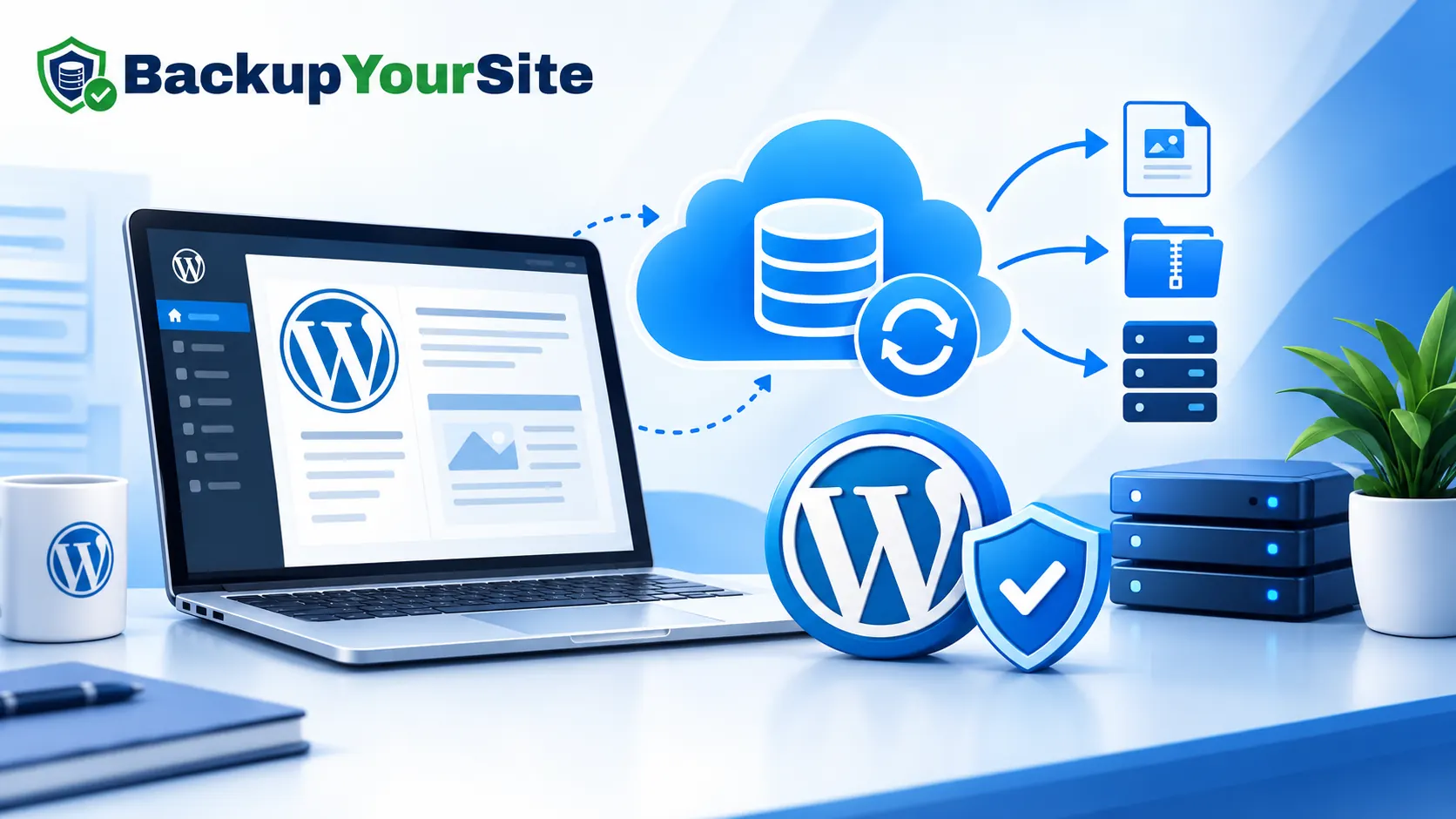
Quick answer: A WordPress backup is a saved copy of your site's two parts — its files (themes, plugins, uploads, core WordPress code) and its database (posts, pages, users, settings, comments) — kept somewhere other than your live server, so you can restore your site to a working state if the original is ever damaged, hacked, or deleted. A backup only counts if both parts are captured together, it's stored offsite, and you've actually confirmed it can be restored.
If you're new to running a WordPress site, "backup" can sound like one of those things you'll get to eventually. This guide explains what a backup actually is, why both halves of your site matter, and what separates a backup you can rely on from one that only looks like it's working.
Why a WordPress Site Has Two Things to Back Up
A WordPress site isn't a single file — it's two systems working together:
- Files — the WordPress core software, your active theme, every installed plugin, and the
wp-content/uploadsfolder holding every image, PDF, or media file you've ever added. - Database — every post, page, comment, user account, and setting. This is stored separately in MySQL, not in the files folder, and it's what most people don't realize needs its own backup.
A backup that only copies files (a common shortcut — "just zip the folder") misses every post, page, and setting, because none of that content lives in a file. A backup that only exports the database misses your theme customizations, plugin configuration, and uploaded media. A real backup needs both, taken together, at the same point in time.
What "Restorable" Actually Means
Having a backup file sitting somewhere isn't the same as having a working backup. A backup is only real if:
- It's stored somewhere other than the site it protects. A backup saved to the same server it's protecting doesn't survive the event most likely to destroy the site — a hacked account, a host-level failure, or an accidental full deletion.
- It's been verified, not just created. A database export that gets cut off partway through (a common failure on shared hosting with tight memory or time limits) can look like a normal file while being unusable for a restore.
- You know how to actually use it. A backup nobody has ever restored from is a backup you're guessing works.
How Often Should You Back Up?
For most active sites, a backup taken automatically every night is the right baseline — frequent enough that a bad day never costs more than a day of content, infrequent enough not to burden the server. A site that rarely changes (a static brochure site with no blog) can reasonably go weekly. The wrong frequency for almost anyone is "whenever I remember," which is how most people discover their backup was stale exactly when they needed it.
What Can Go Wrong Without One
The scenarios a WordPress backup protects against aren't hypothetical:
- A plugin or theme update breaks the site and you need yesterday's working version back.
- A hack or malware infection means the current site state can't be trusted at all — you need to roll back to before it happened.
- A host account is suspended, cancelled, or migrated, and anything stored only inside that account goes with it.
- Human error — a database change, a deleted page, an accidental full-site delete — happens more often than most site owners expect.
The Two Ways to Back Up WordPress
Plugin-based backups run as PHP code inside your WordPress installation. They're the most common starting point, and for a low-traffic site they can work fine — but because they run on the same server they're protecting, they can fail silently if a plugin conflict, a memory limit, or a broken cron job interrupts them, and you often won't know until you try to restore.
Offsite, agent-free backups connect to your server from the outside (commonly over SSH), pull files and database without installing anything on the site, and store the result somewhere entirely separate. This avoids the "backup tool breaks along with the site" failure mode, at the cost of needing SSH access set up once.
Either approach is better than no backup. The difference matters most for sites where downtime or data loss has a real cost — a client site, a store, anything with a mailing list or paying customers.
Related Reading
- How BackupYourSite Works, Step by Step — the offsite/SSH approach in detail.
- Why WordPress Backup Plugins Fail — the specific failure modes above, expanded.
- Does My Web Host Already Back Up My Site? — what host-level backups do and don't cover.
- WordPress Revisions Are Not a Backup — the native WordPress feature people most often mistake for one.