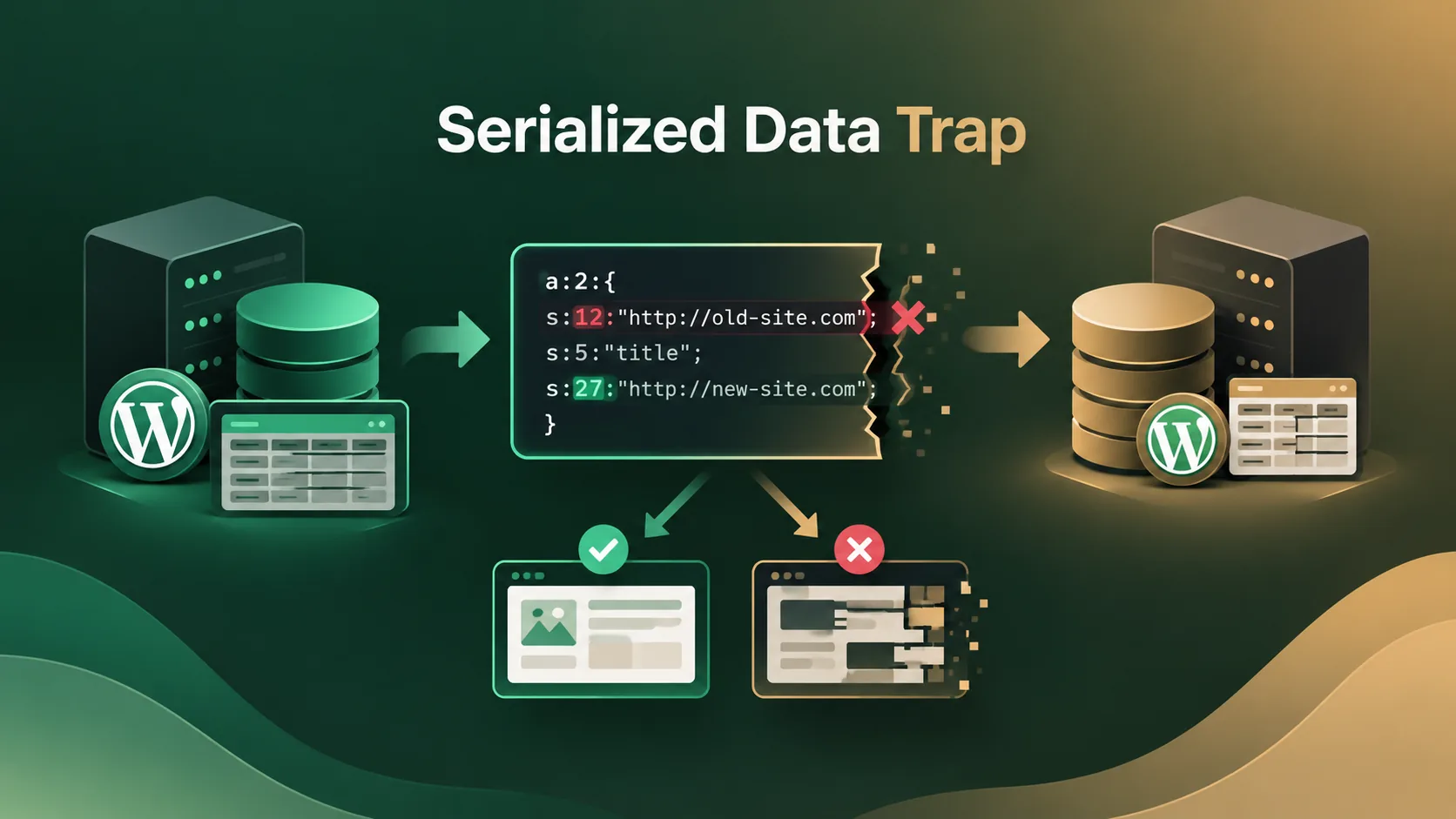
The find-and-replace advice that breaks your site
Almost every quick guide to WordPress database migration says the same thing. Export the database. Run a find-and-replace on the old URL. Import it on the new host. That advice is incomplete. On a site with Elementor, Advanced Custom Fields, or a widget-heavy theme, it's the single most common cause of a migration that "completes" but leaves pages broken. Widgets go empty. The admin screen throws a white page. A migration is exactly the moment a good WordPress backup earns its keep, since the fastest fix for a corrupted import is restoring the pre-migration snapshot, not debugging raw database rows by hand.
The reason is PHP serialization. WordPress stores a large share of its structured data as serialized PHP strings. Widget settings, Elementor layouts, ACF field groups, and theme options all live this way, mostly inside wp_options and wp_postmeta. A serialized string is not plain text you can edit freely. It carries a length prefix for every string value. A naive text replacement changes the string but leaves the old prefix behind. The result is a corrupted value that PHP's unserialize() function refuses to parse. At BackupYourSite we rebuild broken migrations from exactly this cause several times a month. The fix is always the same: understand the byte count, then use a tool that respects it.
What a serialized string actually looks like
Open a WordPress database export in a text editor. Search for s: followed by digits. You'll find rows like this one, taken from a real wp_options row for the widget_text option on a site we migrated in 2026:
s:23:"https://old.example.com";
Read that left to right. s: means "this is a string." The number 23 is the exact byte length of what follows. The quoted text is the value itself. Count the characters in https://old.example.com — 23 of them. That number isn't decorative. PHP's parser uses it to know exactly where the string ends. That matters when the string might contain quote marks or semicolons that would otherwise confuse a simpler parser.
Now run a plain text find-and-replace. Swap old.example.com for new.example.com. The new domain is three characters longer, so the string becomes:
s:23:"https://new.example.com";
The text changed. The length prefix did not. It still reads 23, while the new URL is 26 bytes long. When WordPress later calls unserialize() on this value, PHP reads exactly 23 bytes, stops mid-string at https://new.example., and either throws a parse error or quietly drops the rest. A plain find-and-replace migration with any serialized widget or ACF field group data is very likely to hit this — usually as a visibly broken widget, sometimes as a corrupted ACF field group that doesn't surface until someone opens a specific page in the admin.
This isn't a WordPress bug. PHP's serialization format is working exactly as designed. The mistake is editing the payload without updating the length that describes it.
Rows you should leave alone
A frequent overcorrection comes from teams who've been burned once by the length-prefix problem. They start avoiding URL changes entirely, including rows that are genuinely safe to touch. Two spots deserve a specific note.
Post GUIDs (wp_posts.guid) are the first. WordPress's own developer documentation is explicit: the GUID is meant to be a permanent, unique identifier, and it should not change after a post is published, even during a domain move. Editing GUIDs to "fix" old URLs isn't the SEO improvement people assume. It doesn't affect ranking signals, and it can break RSS readers or external systems that cached the original GUID as an identifier.
The second spot is serialized option values that aren't being searched correctly in the first place — see the next section. Those need a serialization-aware tool, not a skip.
The two most consequential plain-text rows sit in wp_options itself: siteurl and home. Both are unserialized strings, so they're actually the safest rows to update by hand if you must. They're also the rows that silently redirect your entire site to the wrong domain if you miss one. It's common for siteurl to get updated correctly while home is missed. The result looked, from the outside, like an unrelated server issue — in reality it was a plain login loop caused by one skipped row.
The autoload column nobody checks
Every row in wp_options carries an autoload flag, usually 'yes' or 'no' depending on WordPress version. Rows marked to autoload get loaded on every single page request, before WordPress even decides whether the current page needs that data. On a site with years of plugin history, we routinely find autoloaded option tables in the 2-4 MB range. That means every page load, front end and admin alike, pulls several megabytes of serialized data out of the database before rendering a single template tag.
A migration is the right moment to audit this, because you already have the database open. A query like this one surfaces the worst offenders fast:
SELECT option_name, LENGTH(option_value) AS size FROM wp_options WHERE autoload='yes' ORDER BY size DESC LIMIT 20;
This usually turns up a handful of abandoned plugin settings rows sitting at 200 KB or more. An orphaned SEO-plugin cache row still set to autoload, left behind by a plugin deactivated over a year earlier, is a common offender at this size. Trimming rows like this during a migration, not after, is one of the few genuinely free performance wins available. No code change. No plugin update. Just a database row that should have been deleted a long time ago.
Charset and collation: the symptom that shows up a week later
The second most common migration failure has nothing to do with serialization. It's a charset or collation mismatch between the source and destination database. The classic combination is a source table in utf8 dumped and imported into a destination expecting utf8mb4, or the reverse. utf8 in MySQL's own naming is a historical misnomer. It only supports 3-byte characters, while real UTF-8, and emoji in particular, needs 4 bytes. utf8mb4 is the actual complete implementation.
The symptoms rarely show up on day one. What shows up instead, usually a week or two later, is emoji in blog post titles quietly disappearing. Curly "smart quotes" turn into a literal ’ sequence. Occasionally a sentence gets cut off mid-word where a 4-byte character landed in a column built for 3-byte ones. According to the official MySQL character set documentation, a mismatched connection charset during import is one of the most common sources of this exact corruption. The conversion happens silently unless you set the charset explicitly on both the dump and the import connection.
The fix is to check both ends before you move anything. Confirm the source database's table-level and column-level collation with SHOW TABLE STATUS and SHOW FULL COLUMNS. Make your dump and import commands declare the same charset explicitly, rather than relying on a default.
Dump flags that actually matter
A plain mysqldump with no flags works fine for a small, quiet database. For anything bigger, or anything live, three flags change the outcome.
--single-transactionwraps the dump in one transaction on InnoDB tables, so a site taking writes during export doesn't end up with half-written, inconsistent data mid-dump.--quickstreams rows to the output file instead of buffering the full result set in memory first. On a largewp_postsorwp_postmetatable, that's the difference between a dump that finishes and one that exhausts memory.--default-character-set=utf8mb4states explicitly which charset to use for the dump connection, which removes the silent-default risk described above.
In our own migration methodology for jobs over roughly 500 MB, we also split the dump per table rather than as one file. That makes a corrupted or truncated transfer easy to isolate. You re-dump the one table that failed, not the entire database.
Local vs. remote migrations: where this goes wrong fastest
Not every migration moves between two live servers. A common pattern is pulling a production site down to a local environment for development, then pushing a later version back up. Each direction carries its own risk, and in our field work both directions fail in different ways.
Pulling down usually goes smoothly on the database side, since you're importing into a fresh, controlled local stack. The failure mode here is usually media: local environments often skip the uploads folder for speed, so image and PDF links in the database point to files that were never copied. The fix is simple but easy to forget — sync wp-content/uploads alongside the database, not instead of it.
Pushing a local site back up is riskier. Local URLs almost always use http://localhost:8080 or a tool-specific domain like .local or .test, and those need the same serialization-aware replace as any production-to-production move — plus a plugin-table check, since local development often leaves debug plugins active that should never ship to a live site. A query monitor or debug plugin left active after the push is a common way extra autoloaded data ends up in production for no reason.
Safe tools for the actual replace
None of the above means "never run a find-and-replace." It means never run one that doesn't understand serialized length prefixes. Two tools do this correctly.
WP-CLI's search-replace command, documented on wp-cli.org, walks every row and checks whether the value is a serialized PHP array or object. If it is, the command unserializes it, replaces the matched text inside the unserialized structure, and re-serializes it with the correct updated length before writing it back. Always run it with --dry-run first:
wp search-replace 'https://old.example.com' 'https://new.example.com' --dry-run --all-tables
The dry run reports exactly how many rows in each table would change, with no write to the database. You can check that count against what you expect before committing to the real run.
interconnect/it's Search-Replace-DB does the same job through a browser-based UI. It's the better choice when you don't have shell access to the destination server. It's also the engine bundled inside migration plugins such as WP Migrate DB and Dragon Migrate, both built on the same serialization-safe approach. Both tools solve the identical problem: unserialize, replace, re-measure the length, re-serialize. If your workflow already runs automated backups, check your plan's feature list for a pre-migration snapshot option before you touch the database by hand.
What breaks most often, roughly in order
These failures tend to line up in a clear order. Knowing the order helps you spend your time where it counts.
- Broken widgets and layouts. This is the serialized-length problem. It's the top cause, by a wide margin.
- Missed media files. The database moves, but the uploads folder doesn't come with it. Images show as broken links.
- Login loops. Usually just one of
siteurlorhomegot missed during the URL swap. - Charset corruption. Shows up late, often a week after launch, as missing emoji or garbled quotes.
- Leftover debug plugins. Rare, but costly. A plugin left active from a local build can leak internal data or slow every page load.
Fix the top two and you've closed off most of what actually goes wrong on a normal migration. The rest matter, but they show up far less often in our own data.
A short pre-migration checklist
Run the same five checks before every migration job, in this order:
- Take a verified full backup — database and
wp-contenttogether — and confirm it restores before you touch anything live. - Record the exact source charset and collation per table, not just per database.
- Note the old domain, including the protocol (
httpvshttps), since a protocol-only mismatch trips the same serialized-length problem. - Deactivate debug and staging-only plugins before the final export, so nothing extra autoloads on the new host.
- Pick WP-CLI or Search-Replace-DB up front, and plan to dry-run it, rather than deciding mid-migration under time pressure.
How long should a migration actually take?
Clients often ask us for a time estimate up front, and the honest answer depends on database size more than site complexity. A small brochure site, under 50 MB, usually moves in under an hour, start to finish. A busy store or membership site with a 2 GB database can take half a day once you add the dump, the transfer, the import, and the full verification pass.
Here's a rough breakdown from our own job logs across 2026:
- Dump and compress: 5 to 20 minutes for most sites, longer for anything over 1 GB.
- Transfer to the new host: usually the fastest step, a few minutes over a decent connection.
- Import on the destination: 10 to 30 minutes, slower if indexes need to rebuild.
- Serialization-safe search-replace: under 5 minutes with WP-CLI, even on a large table set.
- Full verification pass, the three checks above: 15 to 30 minutes, and worth every bit of it.
Rushing the last step is the single biggest driver of a "fine on launch day, broken by Friday" migration. Give the verification pass the same respect you give the dump itself.
Verifying the import actually worked
A migration that completes without an error message isn't the same as a migration that is correct. Run three checks before calling a job done.
Row counts per table come first. A SELECT COUNT(*) per table on both ends should match exactly. A mismatch on wp_postmeta specifically is the first sign of a dump that was truncated mid-transfer.
Option sanity is second. Confirm siteurl and home both resolve to the new domain, then spot-check two or three plugin settings rows known to hold serialized arrays.
A serialized-integrity spot check is third. Pull five to ten rows from wp_options and wp_postmeta known to carry serialized values, and run them through PHP's unserialize() directly. A value that returns false on a non-empty string is a corrupted row, full stop. It's far cheaper to catch this step than to field a client report about a blank widget three days later.
None of this replaces a verified backup taken before you start. If step three turns up a corrupted row you can't account for, the fastest real fix is restoring from the last known-good backup, then re-running the migration with a serialization-aware tool from the start. See how BackupYourSite's automated backup and restore workflow handles exactly this kind of rollback, so a bad migration never costs more than the time to re-run it. More on backup scheduling and restore windows is covered in our FAQ.
Frequently Asked Questions
Why did my widgets disappear after a WordPress migration?
Most often it's the serialized-length problem described above. A plain text find-and-replace changed a URL or setting inside a serialized PHP string without updating the byte-length prefix in front of it, so PHP can't unserialize the value anymore, and the widget renders empty.
Is it safe to edit wp_posts.guid during a migration?
No. Leave GUIDs as they were originally set. They're meant to be permanent identifiers, editing them doesn't help SEO, and it can break RSS readers or external integrations that reference the original GUID value.
What's the difference between utf8 and utf8mb4 in MySQL?
MySQL's utf8 only supports 3-byte characters, so it can't store emoji or some less common characters, which need 4 bytes. utf8mb4 is the complete UTF-8 implementation. A mismatch between the two during dump and import is a common cause of mangled quotes and missing emoji that shows up days after a migration.
Which tool should I use to replace URLs in a WordPress database?
WP-CLI's search-replace command, or interconnect/it's Search-Replace-DB, which is the same engine used inside WP Migrate DB and Dragon Migrate. Both detect serialized PHP values, unserialize them, make the replacement, and re-serialize with a correct length. Always run with a dry-run flag first.
What dump flags should I always use for a WordPress database export?
Use --single-transaction for consistency on a live site, --quick so large tables stream instead of buffering in memory, and --default-character-set=utf8mb4 so the charset isn't left to a silent default.
How do I verify a WordPress database import actually worked?
Compare row counts per table against the source, confirm siteurl and home resolve correctly, and unserialize a sample of rows from wp_options and wp_postmeta known to carry serialized values. A value that fails to unserialize is a corrupted row, even if the import process reported no errors.
Do I need to update wp_options.siteurl and home separately?
Yes. Both are plain strings, not serialized, but WordPress reads them independently. Missing one after updating the other is a common cause of login loops and redirect errors right after a domain move.
Why does a migration look fine on day one but break a week later?
Charset and collation mismatches are the classic delayed failure. The corruption gets written at import time, but it often doesn't surface until someone opens the specific post or page containing the affected character.
Does moving a local development site to production need the same precautions?
Yes, and then some. Local URLs like .local or .test domains still need a serialization-aware search-replace, plus a check for debug plugins that should never ship to a live site.