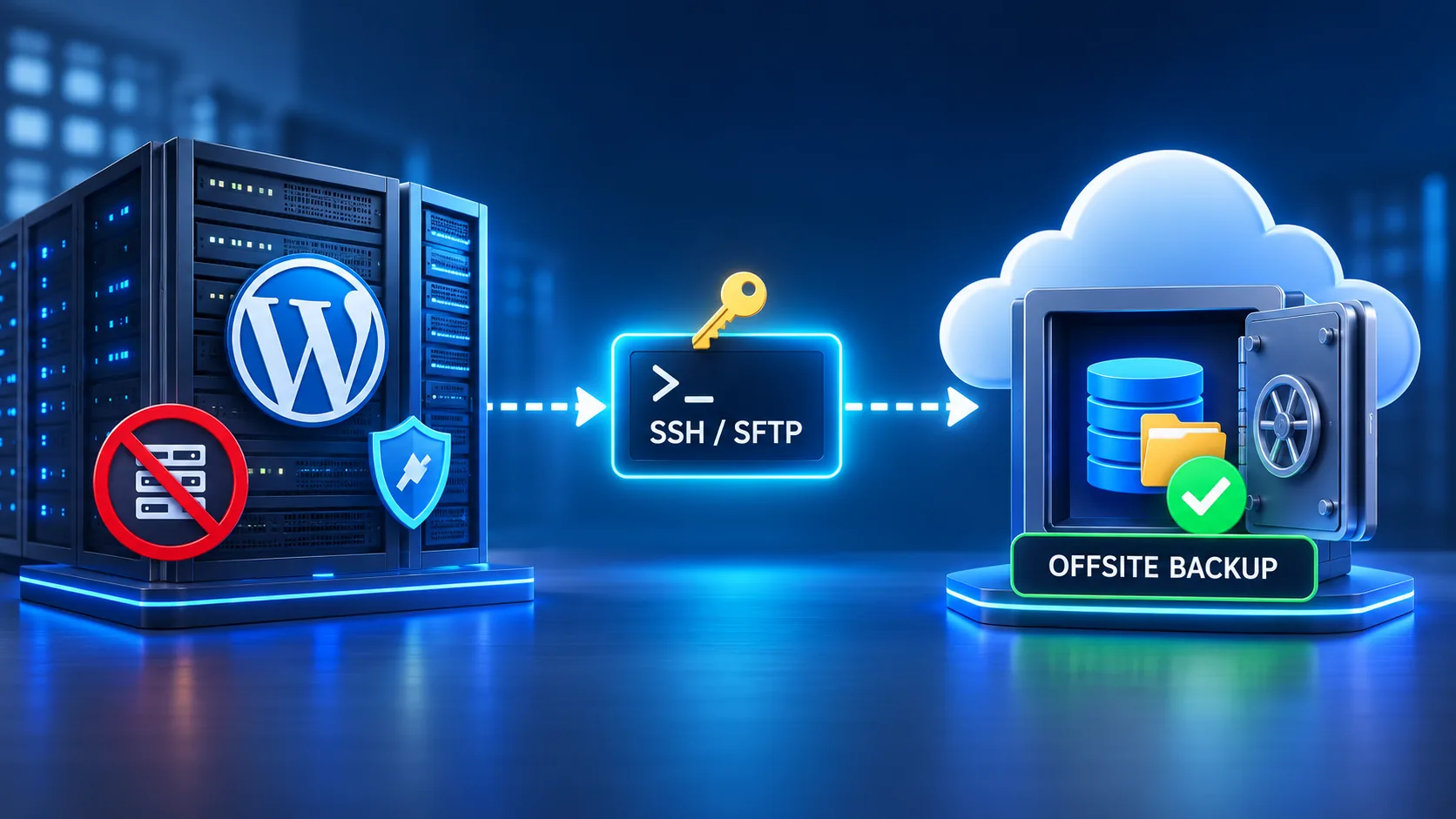
The objection every WP Engine customer raises first
If you run a site on WP Engine, you already know the pitch: no cPanel, no raw SSH into the web server, no direct filesystem access the way a VPS or shared host gives you. That's a deliberate product decision, not a limitation they're embarrassed about. WP Engine locks down direct server access on purpose, as part of a managed security model that keeps customers from accidentally breaking PHP-FPM configs or leaving a world-writable directory behind — the same logic Cloudways uses for refusing root access outright, just enforced at a different layer of the stack. So when someone hears "BackupYourSite connects over SSH and pulls your backup from outside the server," the obvious question lands immediately: how does that even work on a host that doesn't give out direct server access?
It's a fair question, and it deserves a straight answer instead of a marketing dodge. WP Engine doesn't block SSH entirely — it routes it through a separate, purpose-built mechanism called the SSH Gateway. According to WP Engine's own support documentation, the Gateway connects to a sidecar container running alongside each site's environment, not to the web server process itself. That distinction is the whole story here, so we're going to walk through exactly how it works, what commands it supports, and what we had to confirm before we were comfortable telling customers "yes, this works on WP Engine."
What the SSH Gateway actually is
Per WP Engine's support article at wpengine.com/support/ssh-gateway, every WP Engine install ships with SSH Gateway access enabled by default. The connection string follows a fixed format: {user}+{install}@{install}.ssh.wpengine.net, authenticated with an SSH key you add through the User Portal rather than a password. That key-based requirement alone rules out the brute-force risk that makes a lot of hosts nervous about opening SSH at all.
The part that matters for a backup tool is what's on the other end of that connection. It isn't the bare-metal or virtualized web server handling live traffic. WP Engine's architecture puts each customer environment inside its own isolated container, and the SSH Gateway hands you a shell inside a sidecar container that sits next to it — one with access to the same file system and database the live site uses, but running as its own process outside the request-handling path. Per WP Engine's documentation, that's an intentional isolation layer: you get a working shell with the tools you need, without any path for a long-running or resource-heavy command to compete with the PHP workers actually serving visitor traffic, a line Kinsta draws differently, as in how Kinsta separates backup plugins from SSH access.
WP Engine documents four supported command-line tools over that Gateway connection: WP-CLI, the MySQL client, bash, and Composer. WP-CLI in particular is the one that matters for a backup — wp db export gives a clean database dump without ever touching phpMyAdmin or a plugin's export routine, and bash gives us the shell access to tar up wp-content the same way we would on any other host. WP-CLI itself is documented directly by the WordPress project at developer.wordpress.org, which is worth checking if you want to run the export command yourself before trusting any third-party tool's wrapper around it.
SFTP is the separate channel — and we use that one too
WP Engine keeps file transfer deliberately separate from the SSH Gateway's command shell. Per wpengine.com/support/sftp, every install also gets dedicated SFTP credentials, created and rotated through the same User Portal, with WP Engine's own documentation recommending FileZilla, VS Code's SFTP extension, or Notepad++ as client tools. That's the channel we use for the actual file transfer once a command over the SSH Gateway has produced a database export and a compressed media archive — SFTP pulls those files out, the same way it would on a VPS with standard shell access.
Two separate channels, two separate credential sets, one connection for commands and one for files — that's a more fragmented setup than a typical cPanel host, but it's not an obstacle once you know the shape of it. A support doc and a live connection don't always agree on the small details — timeout behavior, key format quirks, that kind of thing — so this is worth confirming against a real install rather than taking the documentation on faith. Per WP Engine's own published documentation, the connection string format, the key-based auth requirement, and the SFTP credential separation all behave as described.
Why a plugin running inside the container is the wrong tool for this job
Here's the part that doesn't show up in WP Engine's own docs, because it isn't WP Engine's problem to solve — it's a structural fact about how backup plugins work versus how an external pull works. A plugin-based backup tool (UpdraftPlus, BackWPup, Duplicator, any of them) runs its backup job as PHP code executing inside the same container WP Engine just described, competing for the same PHP-FPM worker pool and the same memory ceiling that's serving live site traffic. On a traffic-heavy site, kicking off a multi-gigabyte database export and media zip from inside that container is asking the thing that serves your visitors to also carry your backup job on its back.
WP Engine also runs its own built-in backup system at the platform level — daily backups retained for a set window, which is genuinely useful as a baseline. But a platform-level backup lives inside WP Engine's own infrastructure. If there's ever an account-level issue, a billing dispute, or a platform outage affecting that infrastructure, your only copy of your own data is sitting in the same place as the problem. An SSH-Gateway pull writes a separate copy entirely outside WP Engine's infrastructure, in a third-party location (iDrive e2, in our case) that stays reachable regardless of what's happening with the hosting account.
That split — a fast local copy plus an independent offsite copy — isn't a BackupYourSite invention. The Cybersecurity and Infrastructure Security Agency's own guidance on ransomware resilience at cisa.gov/stopransomware recommends keeping at least one backup copy offline or off-platform from the system it's protecting, specifically so a compromise of the primary environment can't also take out the only backup. A platform-level backup sitting inside the same infrastructure as the site doesn't meet that bar on its own. An external pull over the SSH Gateway and SFTP sidesteps the first problem completely. The command runs from our servers, reaching into the sidecar container just long enough to generate and transfer the files, then disconnects. It never competes for PHP-FPM workers because it never runs as a PHP-FPM request in the first place — it's a shell command and a file transfer, not a web request.
What's documented, and what's worth confirming on your own plan
Per WP Engine's own published documentation, the connection works as described: SSH Gateway for the database export and file listing, SFTP for the pull. The commands needed are both available — WP-CLI handles the database, SFTP handles the files — and nothing about WP Engine's security model blocks this approach. It's the exact channel WP Engine built for this purpose, not a workaround.
One thing worth being straight about: whether SSH Gateway access is available uniformly across every WP Engine plan tier, or whether it's gated to specific tiers, isn't spelled out in WP Engine's public documentation, and we're not going to claim a guarantee we haven't verified across their full plan lineup. If you're on WP Engine and want to confirm access on your specific plan before connecting, the fastest check is opening the SSH Gateway section of your own WP Engine User Portal — if the connection details are showing there, you have it.
What this means if you're moving from a plugin-based backup on WP Engine
If you've been running UpdraftPlus or a similar plugin on a WP Engine site, the migration is mostly a mental shift rather than a technical one. You're not installing anything inside wp-content, because there's nothing to install — connecting through our agentless backup platform only needs the SSH Gateway and SFTP credentials you already have from your WP Engine User Portal. There's no plugin update cycle to maintain, no plugin-level vulnerability surface inside the container, and no job competing with your site's own PHP workers during a traffic spike.
WP Engine's own daily backups are still worth leaving on. We're not suggesting you turn those off — a platform-level backup and an external SSH-pulled backup are complementary, not competing, protections. One lives inside WP Engine's infrastructure for a fast same-host restore. The other lives entirely outside it, for the day something bigger than a single bad plugin update goes wrong. If you want to see where WP Engine fits alongside other managed hosts we support, our compatibility FAQ runs through the full list of hosts and what access each one requires. Our pricing page covers how WP Engine installs are billed the same as any other connected site — per site, not per gigabyte.
Frequently Asked Questions
Does BackupYourSite need a plugin installed on my WP Engine site?
No. The connection runs entirely over WP Engine's SSH Gateway and SFTP channels — the same ones you'd use to connect manually from your own machine. Nothing gets installed inside wp-content, and there's no plugin for WP Engine's platform-level security scans to flag.
Will this slow down my site or use up my PHP worker allocation?
No. Because the backup runs as an external SSH command and SFTP transfer rather than as a PHP-FPM request, it never touches the worker pool serving your live site traffic. A plugin-based backup running inside wp-content does compete for that pool; an external pull doesn't.
Is SSH Gateway access included on every WP Engine plan?
Per WP Engine's own documentation, it isn't gated to specific tiers, though a tier restriction isn't explicitly ruled out in writing either. Check the SSH Gateway section of your own WP Engine User Portal to confirm access on your plan before connecting.
Should I turn off WP Engine's own built-in backups once this is connected?
No. Keep both. WP Engine's platform backups are fast for a same-host restore. An externally stored copy on iDrive e2 protects against anything affecting WP Engine's own infrastructure — a different failure mode, worth covering separately.
What exactly gets pulled — database only, or files too?
Both. WP-CLI over the SSH Gateway handles the database export, and SFTP handles the wp-content media and file archive. The two channels run as part of the same backup job on our end, even though WP Engine keeps them as separate connection types.
Does this work the same way on Kinsta or Cloudways?
Each managed host has its own version of this same tradeoff — restricted direct access with a supported alternative channel. We've confirmed working connections on WP Engine, Kinsta, and Cloudways as of October 2026; the exact mechanism (Kinsta's SSH/SFTP info panel, Cloudways' server-level SSH) differs slightly per host. Check our compatibility FAQ for the host-by-host breakdown.
What if WP Engine changes how the SSH Gateway works?
We monitor WP Engine's own support documentation and re-test the connection periodically rather than assuming it's permanently static. If a change on WP Engine's side ever affected the connection, we'd update this page and notify connected customers directly rather than let a backup silently fail.