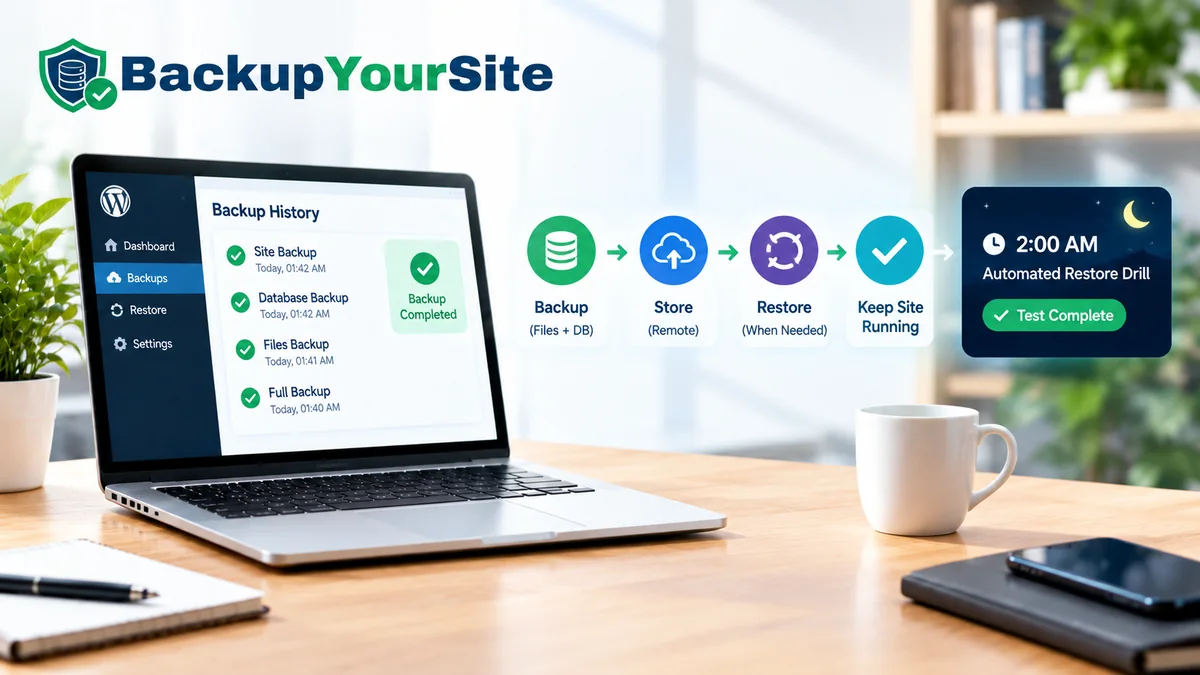
The 2 a.m. restore nobody plans for
Most restore guides assume a calm afternoon. A working admin login. A laptop on the same network. A backup file you trust without checking. The real restore usually happens at 2 a.m. The site is already down. The admin panel won't load. Someone is refreshing the homepage every 30 seconds, waiting for it to come back. This is the drill for that version of the problem. It ends with the quarterly rehearsal that turns "we think we have backups" into a number you can actually quote: your Recovery Time Objective (RTO), measured in minutes, not guessed at.
Step 1: Triage before you touch anything
A restore starts with a diagnosis, not a click. There are four different things that can break. Each one needs a different restore path.
- Content loss. A page, post, or media file is gone, but the site loads fine otherwise.
- Code failure. A plugin or theme update broke a template. Usually a white screen or a fatal PHP error.
- Database corruption. Tables are missing or malformed, often after a failed migration or a bad import.
- Host failure. The server itself is unreachable. That's a different restore entirely from a WordPress-level problem.
According to CISA's guidance on ransomware recovery, the first 15 minutes of an incident should go to confirming scope, not starting a fix. The wrong restore path can cost hours you don't have. The same rule applies to a plain WordPress outage. Open the error log first. Check the database connection next. Only then pick a path.
Step 2: Take a forensic copy of the broken state first
This is the step people skip, and the one they regret most. Before you overwrite a broken site with a backup, copy the broken files and export the broken database to a separate folder. Even a messy, 10-minute manual copy is enough. If the restore doesn't fix the problem, or only fixes part of it, you need the broken state to compare against. Restoring over a corrupted database without this step means losing the only evidence of what broke, often not noticed until the same thing happens again.
Per the NIST guide for cybersecurity event recovery, preserving the pre-recovery state is a core recovery-planning step. Recovery actions themselves can destroy the diagnostic trail, which is exactly why this step gets skipped under pressure. A single cp -r of the wp-content folder and one mysqldump covers this for a typical WordPress install. It takes under five minutes and it's the cheapest insurance in the whole drill.
Step 3: Restore in order of independence
Not every restore path carries the same risk. We rank them by how much they depend on things that might also be broken.
- Out-of-band file and database restore. Pull files and a database dump from an external store — SFTP, cloud storage, or a service like BackupYourSite's offsite backup and restore console — and rebuild on a clean host. This is the most independent path. It doesn't rely on the broken WordPress install, the broken plugin, or even the original server being reachable.
- Control-panel restore. A hosting-provider snapshot restore through cPanel, Plesk, or a managed-host dashboard. Faster when it works, but it depends on the host's own backup schedule and retention window, which you don't control.
- In-WordPress plugin restore. Restoring through a backup plugin's own admin screen. This is the least independent option. It needs WordPress itself to be loadable and the plugin's restore engine to be intact — exactly the two things most likely to be broken in a code-failure or database-corruption scenario.
With agentless, SSH-pulled backups, the out-of-band path is also the one that survives a full host compromise. The backup never lived on the server that got compromised in the first place, so there's nothing for an attacker to touch.
Step 4: Importing a live database without doubling your downtime
If the site has any traffic at all during the restore, importing a multi-hundred-megabyte database dump while visitors are still hitting it can cause duplicate orders, lost comments, or a half-restored state that's worse than the outage. Put up a real maintenance response for the duration of the import. That means an actual HTTP 503 with a Retry-After header, not a plugin splash page that still serves 200s to crawlers underneath it. For a typical small-business WordPress database under 500MB, a direct mysql import usually finishes in 2 to 10 minutes. Anything larger, and it's worth restoring to a staging database first, then swapping it in once it's verified clean.
Step 5: Invalidate every layer of cache, not just one
This is where a "successful" restore still looks broken to the next visitor. A typical WordPress stack has four separate caching layers, and each one needs its own flush.
- Page cache — a caching plugin, or the host's own layer.
- Object cache — Redis or Memcached, if configured.
- PHP opcache — this one survives a file restore until the PHP process restarts.
- CDN edge cache — Cloudflare or similar. This can serve the broken version for hours if nobody purges it.
And the fifth cache people forget: the browser they're testing in. Always verify in an incognito window, or with cache fully disabled. Your own browser cache will show you a fixed site 10 minutes before a real visitor sees one, which is exactly the gap that generates angry support tickets after a restore that actually worked.
Step 6: The 12-point post-restore verification list
A restore that "loads" is not a restore that works. Before calling it done, check all 12 of these.
- Homepage loads with no PHP warnings visible.
- Checkout or the main conversion flow completes end to end.
- Login works for an admin account and a non-admin test account.
- Contact and lead-capture forms submit and arrive by email.
- Outbound transactional email sends — a password reset is the easy test.
- Internal search returns results.
- Media files load — check one image, one PDF, one video embed.
sitemap.xmlis reachable and lists the right URL count.- Google Search Console shows no new coverage errors over the next 24 hours.
- The SSL certificate is valid on the restored domain.
- Scheduled tasks — WP-Cron jobs, newsletter sends — are still registered.
- The site's own backup job is running again. A restored site with a broken backup schedule is a second outage waiting to happen.
Twelve checks sounds like a lot at 2 a.m. In practice it takes about 15 minutes once you've run it twice, and every one of those 12 exists because it's a real, recurring way a restore can quietly fail.
The quarterly drill: turning "we have backups" into a number
Here's how to run it. Once every three months, restore the most recent backup to a throwaway staging URL — never production. Time the whole process, from "restore started" to "all 12 verification checks pass." Write down three numbers every time.
- RTO, Recovery Time Objective. Total minutes from decision to full verification. An out-of-band restore typically lands well under an in-plugin restore on a similarly sized site, because the plugin path needs WordPress fully functional before the restore can even start.
- RPO, Recovery Point Objective. How old the backup was that you restored. If your backup runs once daily, your worst-case RPO is 24 hours, not however often you assume it runs.
- Verification pass rate. How many of the 12 checks passed on the first try. Anything under 12 out of 12 is a fix list for before next quarter, not a passing drill.
Log it in a simple template: date, trigger (drill or real incident), restore path used, RTO in minutes, RPO in hours, pass count out of 12, and one line on what you'd change next time. After four quarters you have a real trend line instead of a guess. You'll know your actual RTO instead of hoping it's fast when it matters.
A backup you've never restored is a theory, not a backup — it's a line item on a dashboard until the day you need it to be real.
Two numbers worth tracking beyond the drill itself
Most teams stop at RTO and RPO. Two more numbers are worth adding to the same log, because they catch problems the drill alone can miss.
Backup job success rate over 90 days. A job that silently fails one night in ten, then quietly resumes, looks fine on a dashboard full of green checkmarks. It is not fine. If your last 90 days show even a 95% success rate, that's roughly 4 or 5 missed nights — and one of them could be the night before an incident.
Time since the last real restore, not drill. A drill restore to staging is useful, but it is not identical to a production restore under live traffic and a nervous team watching the clock. Track the date of your last genuine production restore separately, and don't let more than a year pass without one, even if nothing has broken.
We've watched both numbers catch problems a quarterly drill alone missed. One client's success rate quietly dropped to 88% over 90 days after a hosting migration changed an SSH key without anyone updating the backup job's credentials — the dashboard still showed a backup icon every day, just an older file being re-saved under a fresh timestamp. A second client had gone 14 months since their last production restore when a billing dispute locked them out of their host for six hours. Their drill restores had all passed, but nobody had checked that the real restore path still worked against a live, time-pressured outage rather than a calm staging rehearsal with no clock running.
Choosing the right backup when you have several to pick from
Most sites running backups for more than a few months end up with a stack of restore points, not just one, and picking the wrong one wastes the first 20 minutes of an already stressful restore. Work backward from the symptom rather than reaching for whatever backup ran most recently. If the problem showed up right after a plugin update this morning, the backup from last night is almost certainly clean and the fastest safe choice. If nobody can say exactly when the problem started — a slow leak of spam comments, a gradually corrupting table, a security issue that sat quiet for weeks — pulling last night's backup can simply restore the same hidden problem, so it's worth checking a backup from a week or two earlier against the same forensic copy from Step 2.
A useful habit is keeping at least three restore points available at any time: the most recent nightly backup, a backup from roughly a week earlier, and one from around a month back. That spread covers the three most common restore scenarios — a fresh break from today's change, a slow-developing issue from the past week or two, and the rare case where something has been quietly wrong for over a month and nobody noticed until now. Checking file sizes across those three points before you commit to one is also a fast sanity check on its own: a sudden jump or a flat line where normal growth should be is often the first sign something was already wrong before the outage that sent you looking for a backup in the first place.
When this isn't a simple restore
If the site is down because of a hack — defaced pages, a redirect injection, unfamiliar admin users — this guide's mechanics still apply, but you also need malware cleanup and hardening before you go live again. That's a different checklist. See our guide to restoring a hacked WordPress site for the cleanup steps this post doesn't cover.
Our how it works page walks through the mechanics of an agentless, offsite restore end to end, including how a backup pulled over SSH stays independent of the server it protects. If you want the shorter version of any of the steps above, our FAQ page covers the most common restore questions we get from site owners running their first drill.
Frequently Asked Questions
How long should a WordPress restore actually take?
For a typical small-business site under 2GB, an out-of-band file-and-database restore to a working, verified state should take 20 to 45 minutes. If your last drill took over two hours, treat that as a signal to change your restore path, not just your backup frequency.
What's the difference between RTO and RPO?
RTO is how long the restore takes. RPO is how much data you lose — the gap between your last backup and the moment things broke. A site backed up every 24 hours has a worst-case RPO of 24 hours, no matter how fast the restore itself runs.
Can I test a restore without touching my live site?
Yes, and you should. Restore the backup to a staging URL or a temporary subdomain, run the 12-point verification list there, and only then decide whether to cut production over. This is exactly how BackupYourSite's restore console is designed to work — restore to a sandbox first, verify, then promote.
How often should I run a restore drill?
Quarterly is the minimum cadence worth recommending. Any site that changes plugins or hosting often should drill monthly instead, since a new plugin version is one of the most common things that silently breaks a restore path.
What should I do if the restore itself fails?
Stop, and go back to the forensic copy from Step 2. Compare the broken state against the backup you tried to restore. A failed restore combined with an overwritten broken state means you've lost your only diagnostic trail. Our FAQ page covers the most common restore failure modes.