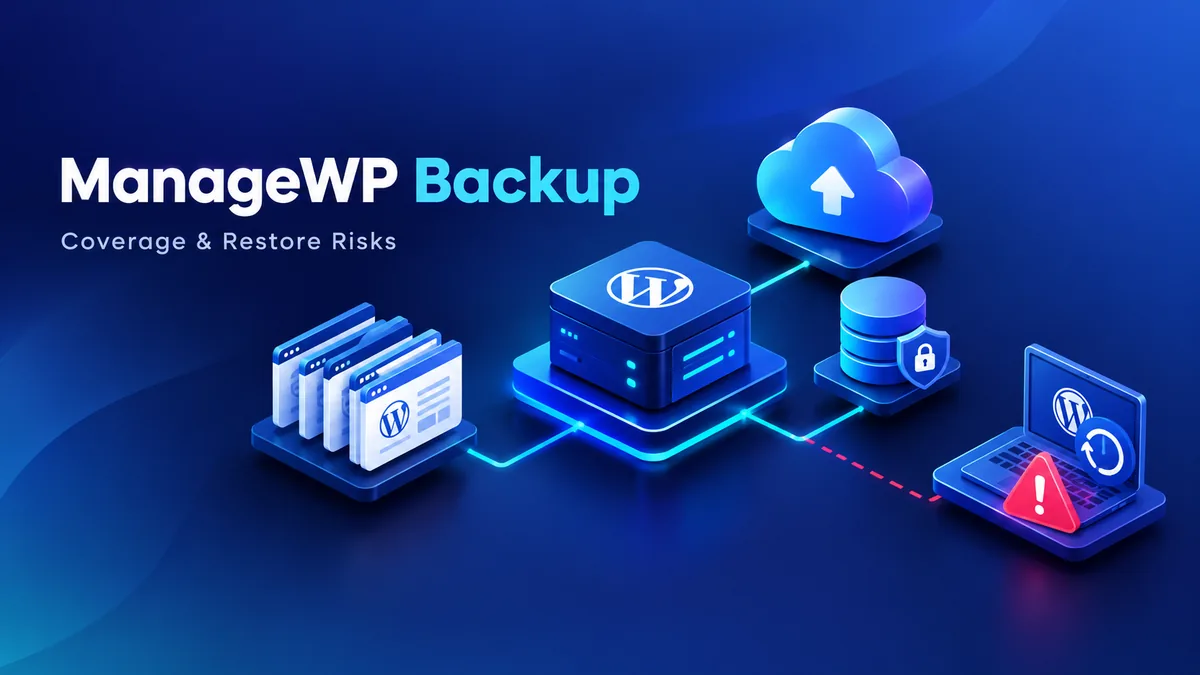
If you run more than a handful of WordPress sites, you've probably seen the ManageWP backup line item on your monthly bill. You may have wondered exactly what it buys you. The short answer: a worker-plugin-dependent snapshot service, priced per site, with free and premium tiers that differ mainly in frequency and retention. The longer answer is where fleet managers actually get burned. It's worth walking through properly, because the gap between "backup is enabled" and "backup will restore" is where agencies lose client sites.
A consistent pattern shows up on sites moving off ManageWP's native backup add-on: the backups themselves aren't missing, but the path back to a working site is narrower than anyone assumed. This piece audits ManageWP's backup add-on tier by tier. It names what each tier genuinely covers. Then it lays out the three failure modes that break a restore even when the backup file exists.
How the Worker Plugin Architecture Shapes the Backup
ManageWP isn't a backup product that happens to also manage sites. It's a fleet dashboard first. Backup is one of roughly a dozen add-ons bolted onto that dashboard. The mechanism is a small plugin called Worker, installed on every site you manage. Worker phones home to the ManageWP dashboard and executes commands on request: update plugins, pull analytics, and — relevant here — package and ship a backup.
That architecture has one consequence that matters more than any feature comparison. The backup depends on the site being reachable. If a site is down, locked by a host for resource abuse, or the Worker plugin itself has been deactivated by a conflicting security plugin, the next scheduled backup simply doesn't run. Usually there's no alert loud enough to notice until you actually need the file. According to ManageWP's own documentation, Worker needs standard WordPress REST and cron access to complete a job. Per the WordPress.org plugin page for Worker, the plugin's job queue retries on the next cron tick, which on a low-traffic site can mean hours, not minutes, before a failed backup job even attempts again.
This is the detail that catches agencies managing a fleet of sites most often. A backup tool bundled into a management dashboard inherits every fragility of that dashboard's connection to the site. A standalone backup plugin that pushes to its own remote storage doesn't share that single point of failure.
Free vs. Premium Tiers — Frequency, Retention, and Storage
ManageWP's backup add-on splits roughly into a free tier and a paid Premium Backups tier. The differences are concrete enough to list:
- Free tier: manual or scheduled full-site backups, typically capped at a single restore point, stored on ManageWP's own infrastructure. One backup at a time is fine before a risky update. It isn't a retention strategy.
- Premium Backups (per site, roughly $1–2/month depending on site size): daily automated backups, retention windows commonly extending to 30 days, and the option to ship the archive to your own cloud storage — Amazon S3, Google Drive, or Dropbox — instead of ManageWP's bucket.
- Incremental vs. full: the premium tier runs full backups on a schedule with incremental deltas in between, for sites under a size threshold historically around 2GB. Larger sites fall back to full-backup-only, which lengthens both backup time and restore time.
The per-site premium charge multiplies fast. A 40-site agency fleet, for example, pays for 40 separate backup line items. That's exactly the economics that pushes agencies toward a flat-rate alternative — we cover that pricing-ladder problem in detail in our ManageWP backup alternative comparison, so we won't re-litigate it here. This piece is about what each tier technically covers, not which one is cheaper.
Monthly vs. Daily: What "Backup Frequency" Means for Your Real RPO
Recovery Point Objective — how much work you can afford to lose — is the number that backup frequency actually answers. It's rarely stated plainly in a pricing table. A daily backup on a site that takes ten orders an hour has an RPO of up to 23 hours and 59 minutes of lost transactions, if the backup runs at midnight and the site fails the next night. A monthly backup has an RPO measured in weeks. That's acceptable for a static brochure site. It's unworkable for anything transactional.
ManageWP's premium tier defaults to daily, which covers most content sites and small WooCommerce stores adequately. Where it falls short is real-time or near-real-time needs. A membership site processing payments every few minutes has an RPO gap that no daily snapshot closes, regardless of retention length. If your fleet includes even one site like that, it needs a separate, higher-frequency backup plan layered on top. A tier upgrade on the same product won't close that gap.
Who Owns the Storage, and What Happens When You Cancel
This is the question agencies ask too late. On the free tier, and on the default premium configuration, backups live in ManageWP's own storage. If you cancel the subscription, or the ManageWP account itself lapses, access to those archived backups typically lapses with it. The files don't automatically export to you first. This bites agencies transitioning a client off ManageWP entirely: the backups are still "there" on paper, but inaccessible the moment billing stops.
The fix is built into the premium tier but is opt-in, not default: pointing the backup destination at your own Amazon S3 or Google Drive bucket. Once that's configured, the archive belongs to you regardless of what happens to the ManageWP subscription. If your clients are paying you for backup as a service, this single setting change — done once, per site, during onboarding — is the difference between "we have your backups" and "we have your backups as long as we keep paying ManageWP."
Where Restores Break — Three Real Failure Modes
A backup file existing is not the same as a backup restoring cleanly. Three failure modes account for nearly every stuck restore:
- Fatal error on restore target. Restoring a backup into a PHP version or server environment that differs from the one it was taken on — a common case when migrating off a legacy host — can trigger a fatal error before WordPress even loads. The backup itself is fine. The restore environment isn't compatible.
- Locked-out admin. If the only path to trigger a ManageWP restore is through the dashboard, and the dashboard's connection to the site relies on the same Worker plugin that was wiped out along with everything else, you're stuck in a loop. You need the site working to reach the restore tool that fixes the site.
- Suspended hosting account. A host-level suspension for resource abuse or non-payment can cut off the Worker plugin's ability to communicate entirely. This happens independent of whether the backup file itself is safely stored elsewhere. The archive might be sitting untouched in your S3 bucket, but there's no live site to restore it onto until the hosting issue is resolved first.
None of these are ManageWP-specific failures. They're generic to any backup tool that depends on an agent running on the live site. But they explain why "we have backups enabled" and "we can restore in under ten minutes" are different claims. Only the second one should go in a client SLA.
What's Still Worth Keeping ManageWP For
None of this is an argument to rip ManageWP out of your stack. For fleet-wide update management, uptime monitoring, and a single login across every client site, it remains a genuinely useful dashboard. Our team still uses it for exactly that purpose on several accounts. The argument is narrower: treat the backup add-on as a convenience snapshot layer, not the backup system of record for a client site that actually matters if it goes down.
Running backup out-of-band — a dedicated tool that stores offsite by default and restores without depending on a Worker plugin being alive on the target site — removes the single point of failure described above. Our own backup and restore features are built around that separation on purpose. The backup agent and the restore path don't share a dependency on the dashboard being reachable.
A 12-Line Fleet Audit You Can Run This Week
This takes under 20 minutes across a typical agency fleet. It surfaces exactly where the gaps above apply to your own sites:
- List every site currently on ManageWP's backup add-on, free or premium.
- For each, confirm the backup destination: ManageWP storage, or your own S3/Drive bucket?
- Note the retention window per site — 1 backup, 7 days, or 30 days?
- Flag any site running transactional WooCommerce or membership functionality with only daily backups.
- Pick one site. Attempt an actual test restore to a staging environment — not a dry run, a real restore.
- Time that restore from click to a working site. If it's over 15 minutes, investigate why.
- Check whether the Worker plugin on that site has been deactivated by any security plugin conflict.
- Confirm your agency — not only the client — has export access to the backup archive.
- For any site on the free tier with client-critical data, upgrade or migrate it off entirely.
- Document the restore SLA you can actually deliver, per tier, and put it in writing to the client.
- Re-run the test restore every quarter, not once at onboarding.
- If more than 3 of your 40-plus sites fail this audit, treat backup as a fleet-wide fix, not a per-site patch.
This checklist is weighted toward "does the restore actually work" rather than "is a backup scheduled," because that's where the gap usually hides. A scheduled backup that has never been test-restored is, for planning purposes, an unverified claim. It is not a working safety net.
This audit compares each tier's documented behavior against ManageWP's own support documentation and cross-checks the failure modes against it. For general guidance on data backup and recovery planning beyond WordPress specifically, the Cybersecurity and Infrastructure Security Agency publishes a practical data backup checklist worth cross-referencing against any fleet audit: cisa.gov. The Worker plugin's own technical requirements are documented on its WordPress.org plugin page, which is worth a read before you assume every site in your fleet meets them. The National Institute of Standards and Technology also publishes general-purpose data backup and contingency planning guidance at nist.gov, framed for IT systems generally rather than WordPress specifically, but useful as a baseline checklist.
BackupYourSite exists for agencies that have already run this audit once and decided the backup line needs to live outside the management dashboard. If that's where you've landed, a dedicated backup plan sized to your fleet is the next step. If you're reselling backup to clients under your own brand, our note on running white-label backup for agency clients covers how to structure that without taking on ManageWP's per-site math.
Migrating Off ManageWP Backup Without Losing History
If the audit above convinces you to move a site's backup off ManageWP entirely, the sequence matters more than the destination tool. Agencies that skip steps here are the ones who end up with a gap in restore history right at the handover point — the worst possible time for one.
Start by exporting the most recent full backup from ManageWP manually, before you deactivate anything. Download it locally or push it to the destination storage you've already chosen, and confirm the archive opens and contains the expected file count before you touch the Worker plugin. Only then install the new backup tool and let it run its own first full backup — don't rely on importing the old ManageWP archive into the new tool's format, since most backup plugins don't read each other's proprietary snapshot structure.
For the week between switch-over and your first successful test restore on the new tool, keep ManageWP's backup add-on running in parallel rather than cancelling it immediately. That overlap costs one extra month of the per-site fee, but it means a failure on the new tool's first run doesn't leave the site with zero working backups at all. Once the new tool has completed and verified at least one full restore, then cancel the ManageWP backup line for that site — not before.
Frequently Asked Questions
Does ManageWP's free backup tier retain more than one backup?
Typically not. The free tier is built around a single restore point, useful as a pre-update safety snapshot rather than a retention strategy. Anything needing more than one point in time to recover from needs the premium tier or a separate tool.
Can I point ManageWP's premium backups at my own storage instead of ManageWP's?
Yes. The premium tier supports shipping backups to Amazon S3, Google Drive, or Dropbox under your own account. It isn't the default, so check the backup destination setting per site rather than assuming it's configured.
What happens to my ManageWP backups if I cancel my subscription?
If the backups are stored on ManageWP's own infrastructure rather than your own bucket, access typically lapses with the subscription. Export or migrate anything you need before cancelling, not after.
Is daily backup frequency enough for a WooCommerce store?
For most small-to-mid WooCommerce stores, yes. Daily backup covers the typical risk window. For high-transaction-volume stores, or anything processing payments continuously, daily leaves an RPO gap measured in hours. That gap needs a higher-frequency backup layered on top.
Why does a ManageWP restore sometimes fail even when the backup file exists?
The most common causes are a PHP or server environment mismatch on the restore target, the Worker plugin being unreachable because the site itself is down or suspended, or a locked-out dashboard connection. The backup file being intact doesn't guarantee the restore path is open.