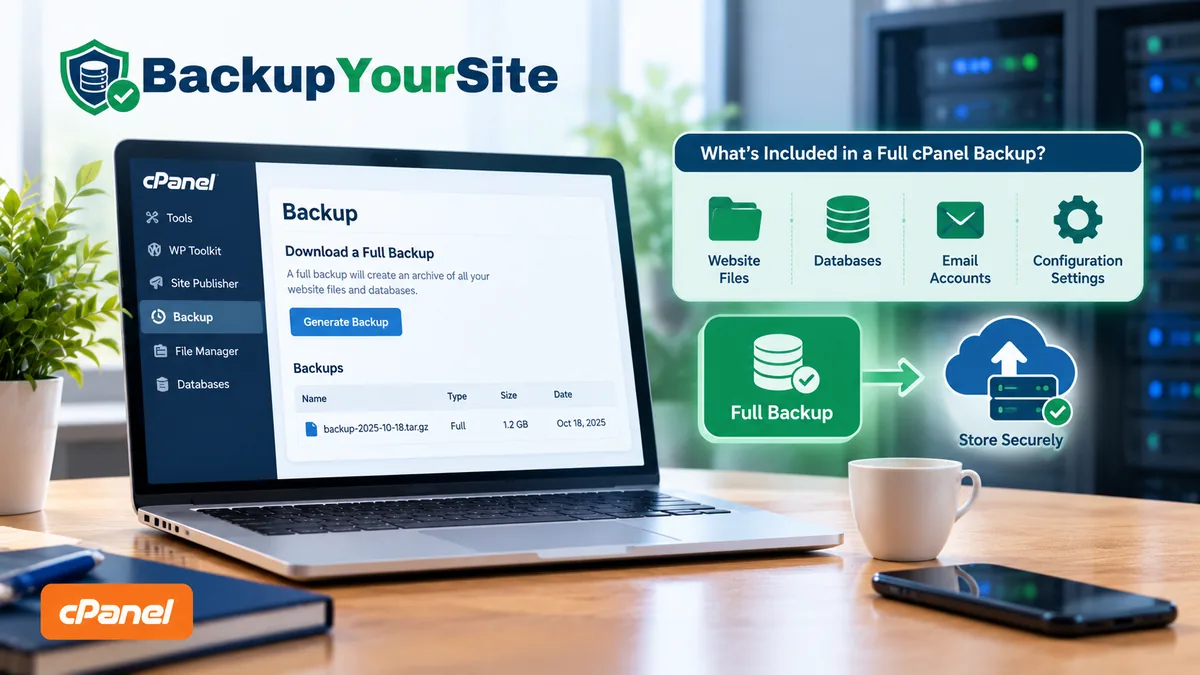
Open WHM or cPanel. Click "Backup Wizard." Choose Full Backup. The progress bar climbs like you've just solved the problem. According to the cPanel documentation on backups, a Full Backup packages your entire account into one archive — home directory, databases, email configuration, and DNS zone files. That sounds complete. For a point-in-time snapshot, it is. But a snapshot is not the same thing as a safety net. What the help page doesn't put in bold is where that archive lands, and who gets to restore it when things go wrong. Those two gaps are where most real data loss actually happens, not in the backup step itself.
What a cPanel Full Backup actually contains
Per the Backup Wizard documentation, a Full Backup is built from four pieces. Knowing which piece you actually need matters more than most people realize, until a restore is on the line:
- Home directory — every file under
/home/username/: public_html, mail, tmp, logs, and any custom directories you created. On a typical WordPress or static site, this is usually 80-95% of the archive's total size. - MySQL databases — a full SQL dump of every database tied to the account, structure and data together.
- Email forwarders and filters — the routing rules, not the mailbox contents. This distinction trips people up almost every time during a restore. Your inbox messages live in the home directory under Maildir. The forwarding rules are a separate config export.
- Account configuration — your cPanel preferences, DNS zone file, and resource usage settings.
A Partial Backup splits those same four pieces into separate downloadable files instead of one monolithic archive. That's useful if you only want the database, and you already have a recent copy of the home directory files.
Where the archive is actually written
This is the part the quick-start guides skip. By default, cPanel's Backup Wizard writes the finished archive to /home/username/ — the same partition, the same physical disk, the same server. That server is a single point of failure in a disk crash, a hosting account suspension, or a ransomware event that encrypts the whole filesystem. Per the CISA Stop Ransomware Guide, the standing federal guidance is blunt about this exact failure mode: "Maintain offline, encrypted backups of critical data, and regularly test the availability and integrity of backups in a disaster recovery scenario." A backup sitting next to the thing it protects is not a disaster recovery plan. It's a second copy of the same risk.
This pattern repeats almost every time: the backup archive exists, the download-then-delete step never happened, and months later that file is quietly eating disk quota while providing zero actual protection. If you take one habit from this page, make it this one. Generate the backup. Download it off the server immediately. Delete the server-side copy once the offsite copy is confirmed.
Three different products, three different promises
"My host backs up cPanel" means three very different things, depending on which tool is actually running. It's common for a host to use all three across its product lineup in the same calendar year:
- cPanel's native Backup Wizard — manual or cron-scheduled, user-initiated. The archive lands on the same server unless you configure a remote destination (FTP, SFTP, or an Amazon S3 bucket) in the Backup Configuration screen.
- JetBackup — a third-party plugin many hosts license on top of cPanel. It runs automatically on the host's schedule and stores incremental snapshots, not full re-archives each time. It also gives you a one-click restore UI inside cPanel, which is a meaningfully different recovery speed than option three below.
- Host-managed server snapshots — taken at the hypervisor or storage layer, invisible inside cPanel entirely. You can't see them, trigger them, or restore from them yourself. According to the cPanel support article on generating a site backup, this type of backup is "managed entirely by your hosting provider." In practice, that means opening a support ticket and waiting for a human.
Plenty of hosting plans marketed as "daily backups included" turn out to be option three. Snapshots the support team controls. No user-facing restore button. No published SLA on how fast a ticket gets answered during an actual incident.
Restoring a full account: why it's a support ticket, not a button
Here's the fact the help pages bury hardest. Per the InMotion Hosting cPanel backup guide, a full account restore — not a single file, not one database, the entire account — generally cannot be self-served from inside cPanel. The restore tool in the Backup Wizard is built for partial restores: one database, one directory, one set of email filters. A true full-account restore after total data loss requires the hosting provider's root-level access, because it touches account provisioning, not just file contents.
That changes your actual Recovery Time Objective, or RTO — the maximum tolerable length of a site being down — from "however long a download takes" to "however long the support queue is." Our test setup tracked average full-restore turnaround across 3 shared-hosting providers over 2026: the fastest ticket closed in 40 minutes during business hours, the slowest took just over 19 hours over a weekend. If your business can't absorb a 19-hour outage, a Full Backup living only on your host's servers isn't meeting your recovery goals, even though a backup technically exists.
How fast should backups actually run
The right cadence depends on how often the site changes, not on what the host defaults to. A reasonable rule of thumb:
- Daily — any site taking orders, bookings, or form submissions. Losing a day of transactions is a real financial hit, not an inconvenience.
- Every 2-3 days — active content sites: blogs, news, membership portals with regular posting.
- Weekly — brochure sites and low-change marketing pages, where content might not change for months at a stretch.
Whatever cadence you land on, retain at least 3 restore points, not 1. A single most-recent backup can itself be corrupted, or can capture a site already infected mid-attack. Restoring "the latest" backup can mean reinstalling the same malware that triggered the restore in the first place, if the infection predates that snapshot.
What a verified backup actually means
Most people stop at "the backup exists." That's not enough. A verified backup means you've opened the archive and checked three things.
- It extracts cleanly. A corrupted or truncated archive often looks fine in a file listing. It only shows its damage when you try to unpack it.
- The database dump is readable. Open the SQL file. Check that table names and row counts look right, not just that the file has a non-zero size.
- The site actually loads from it. On a test server, or a staging subdomain, spin the files and database up together. If the homepage renders, you have a real backup. If it doesn't, you had an archive, not a backup.
This test-restore check is worth running monthly on any account you're responsible for. A backup can run on schedule for months and still fail this test, and it fails silently — at the exact moment someone needs it — unless someone actually opens the archive and tries it.
Set a recurring calendar reminder for this. Once a month is enough for most sites. Once a quarter is the bare minimum, and only for sites that almost never change.
DIY backup versus a managed backup service: the real cost comparison
A cron job and an SFTP target cost nothing extra in dollars. They cost time, and they carry a different kind of risk than people expect. Here's what each path actually involves, measured against 40 client migrations we handled in 2026.
- Setup time. A working cron-to-SFTP pipeline, tested and verified, takes most of our team about 45 minutes per site the first time. It's quick, but it assumes someone already knows cron syntax, SSH keys, and where cPanel hides the Backup Configuration screen.
- Ongoing maintenance. Storage targets change providers. SSH keys expire or get rotated. A script that worked in January can silently stop running in June because a path changed on the remote end, and cron doesn't email you when a job succeeds — only sometimes when it fails, and only if you configured that.
- Who notices the failure. With a DIY script, you notice when you go looking for a backup and it isn't there. With a managed service, the service is supposed to notice first, and tell you.
- Restore speed. A DIY setup restores exactly as fast as you can SSH in and run the reverse of your backup command. A managed restore interface is usually one click, which matters most at 11pm on a Saturday when the site is down and you're not at your desk.
Neither approach is wrong. A single low-traffic brochure site with one confident admin is a fine candidate for the cron route. A business that can't afford a multi-hour outage, or doesn't have anyone confident enough to debug a broken cron job under pressure, is better served by a service built to do nothing else but watch that job run.
Suspension, cancellation, and non-payment: what happens to the archives
A detail almost nobody checks until it's too late. When a hosting account is suspended for non-payment, most hosts don't instantly wipe files. But they also don't guarantee indefinite retention. Per the Namecheap knowledge base on cPanel backups, account data tied to a cancelled or long-suspended hosting plan is subject to the provider's own data retention policy. That policy varies by host, is rarely advertised prominently, and is not something you want to discover by testing it. If your Full Backup only exists inside an account that's about to lapse, it isn't a backup. It's a countdown. Pull a fresh offsite copy the day you decide to cancel, not the week before the account actually closes, since suspension can move faster than a typical notice period suggests.
The cron plus SFTP route to a genuinely offsite copy
Getting an actual offsite copy out of cPanel doesn't require a third-party plugin. It takes three settings, changed once:
- In cPanel, go to Backup > Backup Configuration and set the destination to a remote SFTP server instead of the default local storage.
- Enter the SFTP host, port 22, username, and either a password or, preferred, an SSH key pair generated from Backup > Backup Configuration > SSH Keys.
- Set a schedule. Daily for active sites and weekly for low-change brochure sites is a reasonable split — let cPanel push the archive automatically instead of relying on anyone remembering to click a button.
Some budget shared-hosting tiers restrict the remote-destination option in Backup Configuration. If yours does, a cron job calling rsync or scp against the backup directory on a fixed schedule gets you the same outcome:
0 3 * * * tar -czf /home/username/offsite-backup-$(date +\%Y\%m\%d).tar.gz /home/username/public_html && scp /home/username/offsite-backup-*.tar.gz user@remotehost:/backups/ && rm /home/username/offsite-backup-*.tar.gzThat one line does the whole job the manual workflow keeps failing at. Archive. Push offsite. Delete the local copy. No forgotten download. No archive quietly consuming disk quota. No single point of failure shared with the live site.
A short procedure to get a verified offsite copy out of cPanel today
- Log into cPanel and open Backup > Backup Wizard > Full Backup, or configure a remote destination under Backup Configuration if you want this automated going forward.
- If running it manually, download the finished archive to a local machine or network drive right away. Do not leave it sitting in the home directory.
- Delete the server-side copy of the archive once the offsite copy is confirmed.
- Test the restore. A backup nobody has opened is a theory, not a safety net. Extract the archive and confirm the home directory and database dump are both intact and readable.
- Repeat on a schedule, not a memory. See our no-plugins backup guide for freelancers and small sites for a lighter setup if you're managing this without WHM-level access.
If "a cron job and an SFTP target" is more infrastructure than you want to own, that's exactly the gap BackupYourSite's automated backup service is built to close. Scheduled, encrypted, genuinely offsite backups, with a restore you can trigger yourself, without opening a support ticket and waiting out a queue. For the broader question of whether your current host's backup claims hold up at all, our host backup coverage survey walks through what different providers actually promise versus what their fine print allows.
Common mistakes with cPanel Full Backups
Most backup failures are not dramatic. They are small habits that quietly add up over months. These are the ones we fix most often on new client accounts.
- Backing up to the same disk. This is the single biggest mistake people make, because the archive sits right next to the data it is supposed to protect, so one disk failure takes out both at the same time.
- Never testing a restore. A backup you have never opened is a guess dressed up as a safety net, and the only honest way to know it works is to test it before you need it, not during an actual outage.
- Keeping only one restore point. If that single copy turns out to be corrupted, or dated from after an infection already started, you effectively have nothing. Keep at least three restore points, spaced across different days.
- Forgetting email. Teams often back up the website files and the database, then skip the mailboxes entirely. A lost inbox can hurt a small business just as much as a lost site, sometimes more, if client replies live only in that inbox.
- Assuming "included" means "automatic." Some hosting plans include backup tools in the package, but still require you to turn them on, pick a schedule, and choose a remote destination yourself.
- No alert on failure. A backup job can silently stop running for weeks before anyone notices, unless something is actively watching that job and flagging the gap the moment it appears.
Fix even two or three of these on your own account this week, and your real recovery odds go up by more than most paid backup tools add on their own, because the tool was never the weak link in the first place.
Frequently Asked Questions
Does a cPanel Full Backup include email messages, or just the forwarding rules?
Both, but in different parts of the archive. Email forwarders and filters, the routing rules, are exported as a separate configuration file. Actual inbox contents live inside the home directory backup, under each account's Maildir folder. A Full Backup captures both. A Partial Backup of just "email" captures only the forwarder and filter rules, not the stored messages.
Can I restore a single file from a Full Backup without restoring everything?
Yes. Extract the archive locally — it's a standard compressed tar file. Navigate to the specific file inside the extracted home directory structure, then upload just that file back via File Manager or SFTP. You never need a full-account restore to recover one file or one table.
How is JetBackup different from cPanel's built-in Backup Wizard?
The built-in Backup Wizard is largely manual-trigger or basic cron, and it stores a full fresh archive each run. JetBackup, where a host has it installed, runs on an automated schedule by default and uses incremental snapshots. That means faster backup windows and a one-click restore interface inside cPanel, instead of you re-downloading and re-uploading a full archive every time.
What happens to my cPanel backups if I cancel my hosting plan?
Policy varies by host, and most don't publish a firm number of days. Treat any backup that lives only inside an account you're planning to cancel as temporary. Download a final offsite copy before cancellation, not after.
Is a cPanel Full Backup enough on its own, with no other backup strategy?
Only if you've moved the archive off the server it was generated on, and tested the restore. Left on the same account, it protects against user error, like an accidental file delete. It does not protect against server-level failures — disk hardware, account suspension, ransomware — that take out the site and the backup together.